How to invite or add users to a Team in AllSpice
This guide explains how to invite new users to your AllSpice organization and assign them to a Team. Teams control repository access, permissions, and billing status, so adding users to the correct Team is important.
You can invite:
- Internal engineers
- External reviewers
- Contractors
- Manufacturing partners
- Add collaborators

Before you start
Make sure:
- You have permission to manage Teams in your organization
- The Team you want to add the user to already exists
(If not, see: How to Configure Teams)
Invite people to a Team
Below is an interactive walkthrough showing how to invite a new user and assign them to a Team.
Step-by-step instructions to invite people to your Team
-
Return to your dashboard by clicking the AllSpice logo in the upper left-hand corner.
.png)
-
Select the Organization tab to manage or view your organizations.
.png)
-
Choose a specific organization from the right sidebar
.png)
-
Go to the Teams tab to find all teams within this organization.
.png)
-
Click View on a team to see its members and further details.
.png)
-
Click on the 'Search users...' field to begin finding members to add. You may have to invite users if they are not already registered.
.png)
-
Select the email address of the user you want to add to the team.
.png)
-
Click the Invite to Reviewers button to send an invitation to the selected user.
.png)
-
Search for additional users or invite them if you need to add more team members.
.png)
-
Quickly select another email from suggestions to add another member to the team.
.png)
-
Send an invitation to the chosen user by clicking the Invite button again.
.png)
-
Congratulations, you've invited members to your team!
What happens after you invite someone?
- The user receives an email invitation.
- Once they accept, they are added to your organization.
- Their access is determined by the Team’s permission settings.
If the Team has Write access to Files, the user will count as a billable designer.
Best Practices for Adding Users
Assign users to the correct Team
- Designers: Full write access to repositories
- Reviewers: Read access to files, write access to Design Reviews
- Contractors: Limited repository access
Limit Administrator access unless required
Administrator access provides full repository control and may affect billing.
Limit external users to specific repositories
Use “Specific repositories” when adding contractors or external partners. Add only the repositories they need to review or design.
Frequently Asked Questions
Can I invite someone to multiple Teams?
Yes. A user can belong to more than one Team.
Can I change a user’s Team later?
Yes. You can remove or move members between Teams at any time.
Does inviting someone automatically make them a paid designer?
No. Only users with Write access to Files count as billable designers.
What if the user does not receive the email?
Ask them to check their spam folder or confirm the email address was entered correctly.
After you've tried the spam folder, contact support@allspice.io
Accepting invitations
If you have received an invitation to join a team, here are the instructions to join the team.
NOTE if you don't have an account yet, you will need to click on the invite link below twice. If you are having problems, please reread these instructions. If you are still having issues, please visit support and let us know how we can help you.
Step 1 - click invite link
You will receive an email with an invite link. Click on the link.
Please click the following invite link to join the team:
https://hub.allspice.io/org/invite/6Co9MTQDGVUsOfXLR2c0JG47s
Not working? Try copying and pasting it to your browser.
Step 2 - login to AllSpice Hub or register for new account
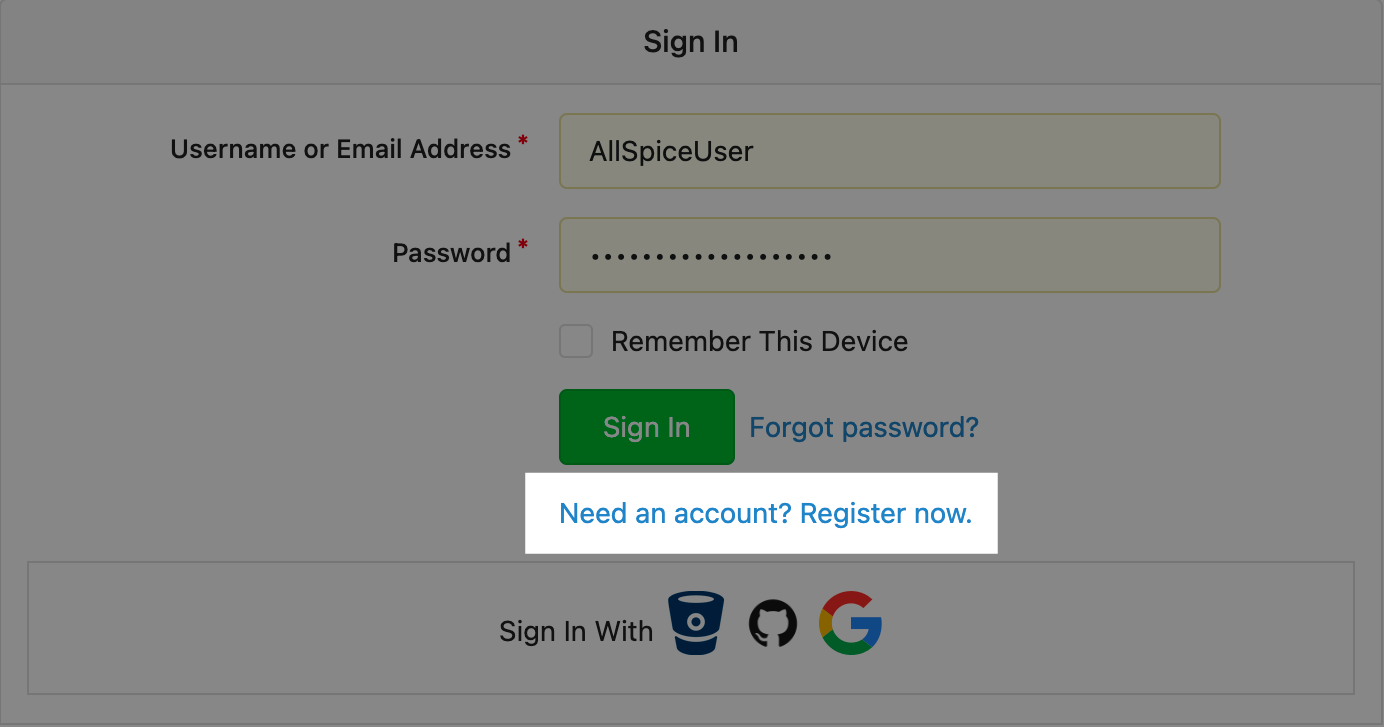
If you do not already have an account, please click "Register now"
Step 2b - click email account activation link
After you register, we'll send you a confirmation email. Please check your email and spam folders for this email
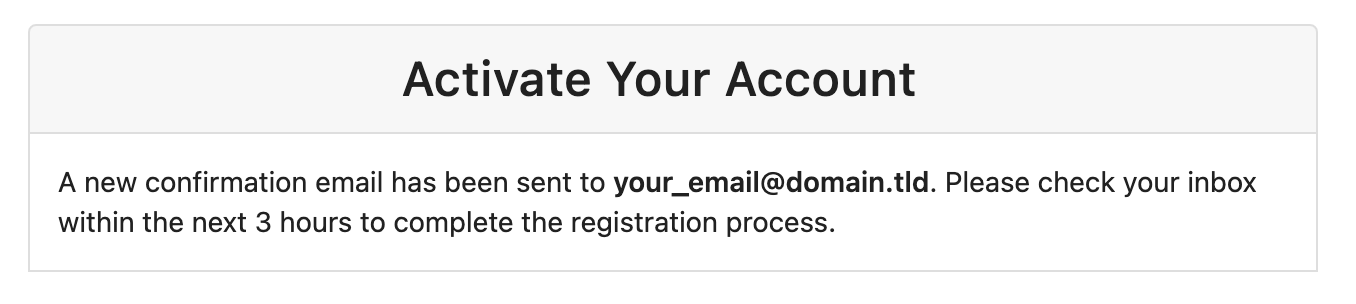
You will receive an email like this:
Hi YourUsername, thanks for registering at AllSpice Hub!
Please click the following link to activate your account within 3 hours:
https://hub.allspice.io/user/activate?code=2023062117220001802a589d2f186234852fe8b8819b4335d57616572264616e69656c74657374353031
After you activate your account, you will be able to log in.
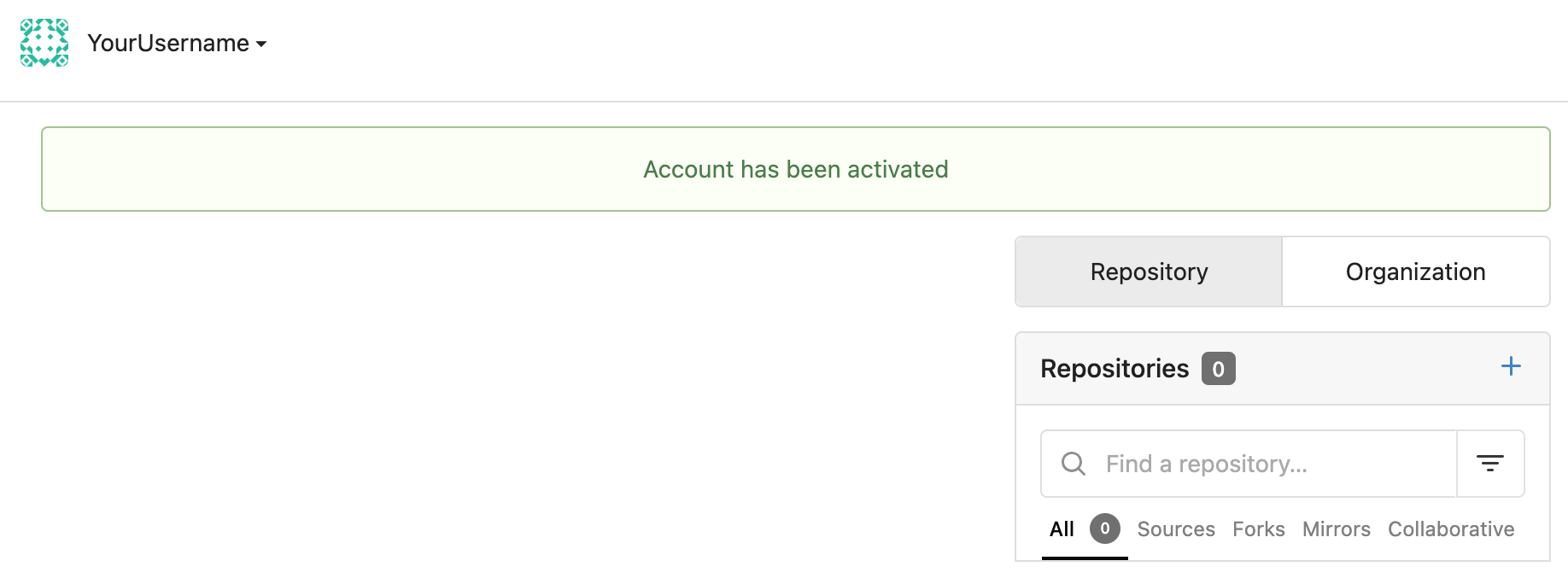
Step 3 re-click invite link
After you have logged in, please click on the invite link from your invite email
It will look like this:
https://hub.allspice.io/org/invite/6Co9MTQDGVUsOfXLR2c0JG47s
Step 4 Join the team!
After you are logged in and click on the invite link, you will be able to view your invite. If you would like to join the organization team, click join. You will be taken to the organization page.

Step 5 Success!
Contratulations, if you have joined the team, then you are well on your way to designing and reviewing schematics and PCBs in AllSpice Hub! If you're feeling ready, try our Quick Review
Step 6 Troubleshooting
- If you have not registered your account, the invite won't work.
- After creating your account and logging in, make sure you click the original invite link again.
- Contact support