Using Jira as an External Issue Tracker
AllSpice supports redirecting its built-in issue tracker to Jira. When configured, engineers who click the Issues button in a repository are sent directly to your Jira board, and any Jira ticket IDs referenced in commit messages, Design Reviews, or comments automatically become clickable links.
This is the recommended setup for teams where Jira is already the cross-functional standard for tracking validation tasks, firmware coordination, and rework actions across disciplines.
.png)
Setting it up
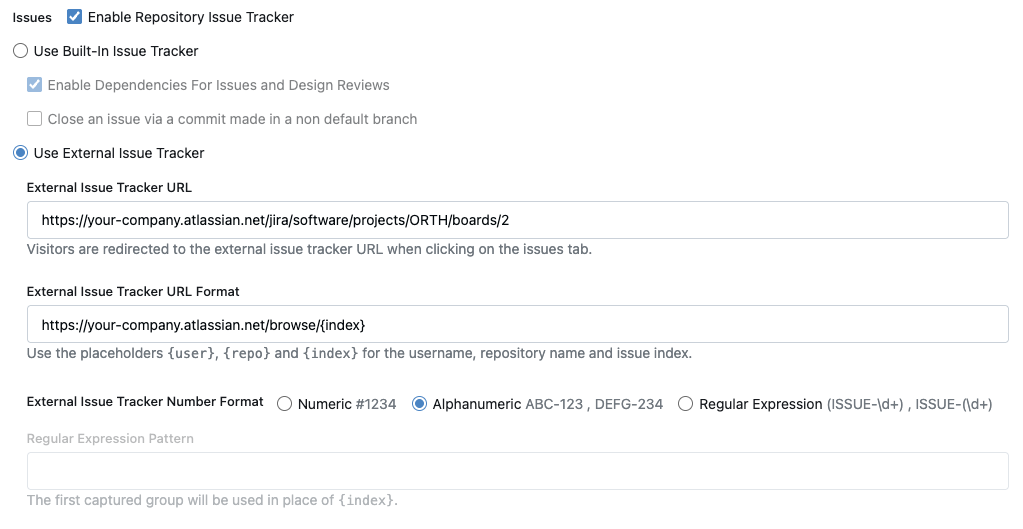
Go to your repository → Settings → Repository → scroll to Advanced Settings and select Use External Issue Tracker. You'll see three fields.
External Tracker URL
This is the URL users land on when they click the Issues button. Set it to your Jira board.
Example:
https://your-company.atlassian.net/jira/software/projects/ORTH/boards/2
External Tracker URL Format
This field controls how AllSpice generates direct links to individual Jira tickets when they are referenced in text. Use {index} as the placeholder — AllSpice replaces it with the ticket ID at render time.
Example:
https://your-company.atlassian.net/browse/{index}
Why
/browse/and not the board URL? The board URL only works in the context of that specific board. The/browse/ORTH-18URL works for any ticket in the project, regardless of which board or sprint it belongs to, and is the stable permalink Jira uses for sharing tickets.
Issue ID Style
Select Alphanumeric for Jira. This tells AllSpice to recognize ticket IDs in the format ORTH-18, ISS-1234, etc. rather than plain numbers.
Referencing Jira tickets in AllSpice
Once configured, you can reference Jira tickets anywhere in AllSpice — commit messages, Design Review descriptions, comments — by typing the ticket ID. AllSpice will automatically turn it into a hyperlink to your Jira instance.
Example commit message:
ORTH-18 Fix boost stability issue on rev C spin
Example Design Review description:
Closes ORTH-42. Validated signal integrity results against acceptance criteria.
See also ORTH-39 for the original schematic review findings.
Distinguishing Jira tickets from Design Reviews
Because # references now point to Jira, use ! to link to an AllSpice Design Review by number.
| Notation | Links to |
|---|---|
ORTH-18 |
Jira ticket ORTH-18 |
#18 |
Jira ticket #18 (numeric) |
!18 |
AllSpice Design Review #18 |
This distinction matters most when a Design Review description or commit message on the develop branch needs to reference both a Jira ticket and the Design Review that resolves it.
Recommended workflow
AllSpice uses a two-branch strategy — main for released designs and develop for active work. Here is how Jira references fit into that flow:
- Commit — Push your changes to
develop. Include the Jira ticket ID in your commit message so the work is traceable. - Design Review — When ready, open a Design Review from
developintomain. Reference the relevant Jira tickets in the description. - Release — Once the Design Review is approved and merged into
main, all Jira references in the commit history and Design Review description remain as a permanent audit trail.
What this integration does and does not do
The External Issue Tracker setting is a link-only integration. It means:
- Clicking Issues redirects to Jira — it does not pull Jira tickets into AllSpice.
- AllSpice's built-in issue tracker is disabled for the repository once this setting is enabled.
- Jira ticket statuses are not automatically updated when a Design Review is opened or merged.
If your team wants Jira ticket statuses to update automatically based on AllSpice activity — for example, moving a ticket to In Progress when a branch is created, or In Review when a Design Review is opened — that is possible using AllSpice Actions. Contact your AllSpice account team to discuss setting this up.
Example configuration summary
| Field | Value |
|---|---|
| External Tracker URL | https://your-company.atlassian.net/jira/software/projects/ORTH/boards/2 |
| External Tracker URL Format | https://your-company.atlassian.net/browse/{index} |
| Issue ID Style | Alphanumeric |