Running Automations in your repositories
Automating tasks in your repositories through actions is a powerful way to streamline development, catch issues early, and ensure consistent results. In this guide, we’ll walk you through how to effectively monitor and manage your automations workflows—from triggers to real-time monitoring, and browsing commit history to inspecting job details.
Understanding Automation Triggers
Triggers initiate the automation workflow process, determining when and how automations are run. One of the most common triggers is set to activate after files are pushed to a repository. This immediate feedback loop helps ensure your code changes are checked promptly and any issues are flagged before merging.
Key Trigger Types
- Push Trigger: Runs automatically after code is pushed, providing real-time checks.
- Scheduled Triggers: Automate workflows on a recurring basis.
- Manual Triggers: Allow users to run automations on demand.
Real-time monitoring of Automations
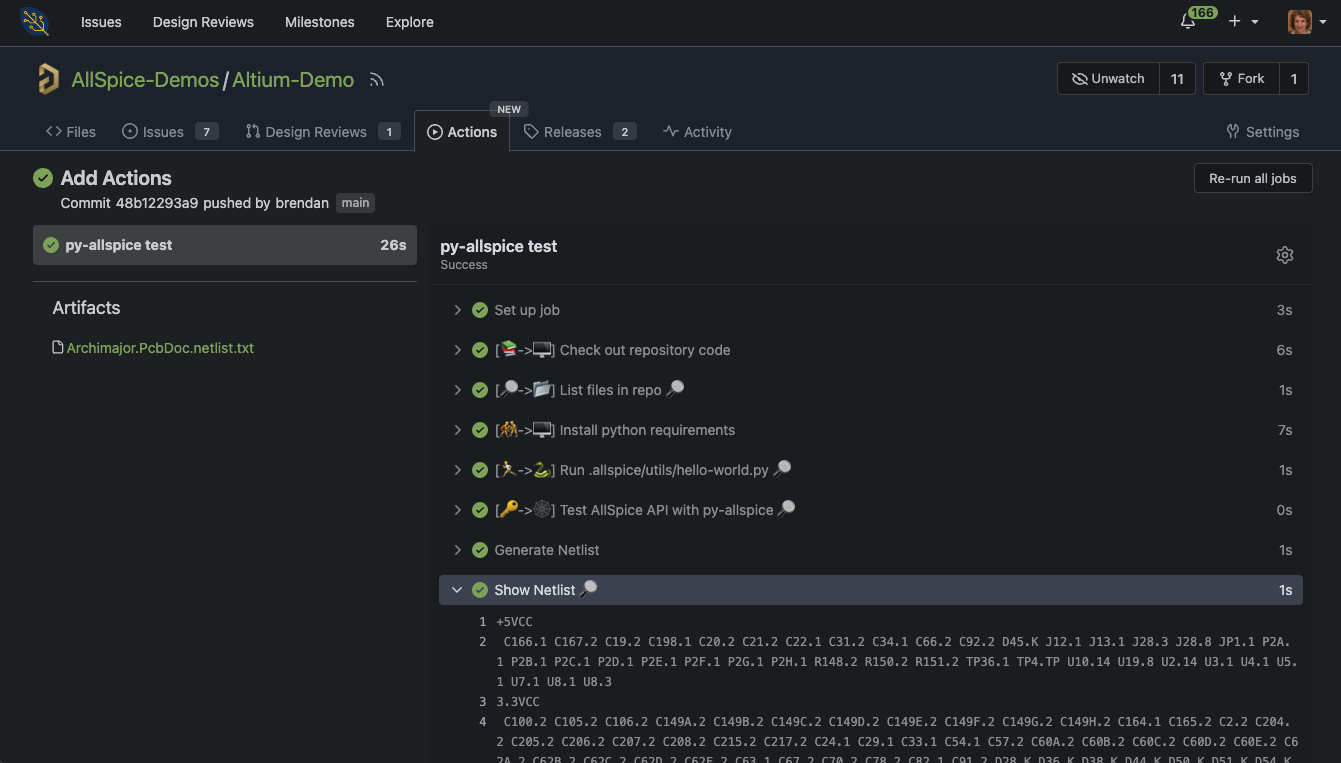
You can track the progress of your workflows in real-time through the repository’s Automations tab. Once you click on an automation run in progress, you’ll be able to monitor the execution of each step as it happens.
The great part is, even while the workflow is running, you can interact with parts of it. You can inspect logs, review what’s happening at every step, and download any artifacts that have already been saved, all without waiting for the workflow to complete.
Browsing commit history
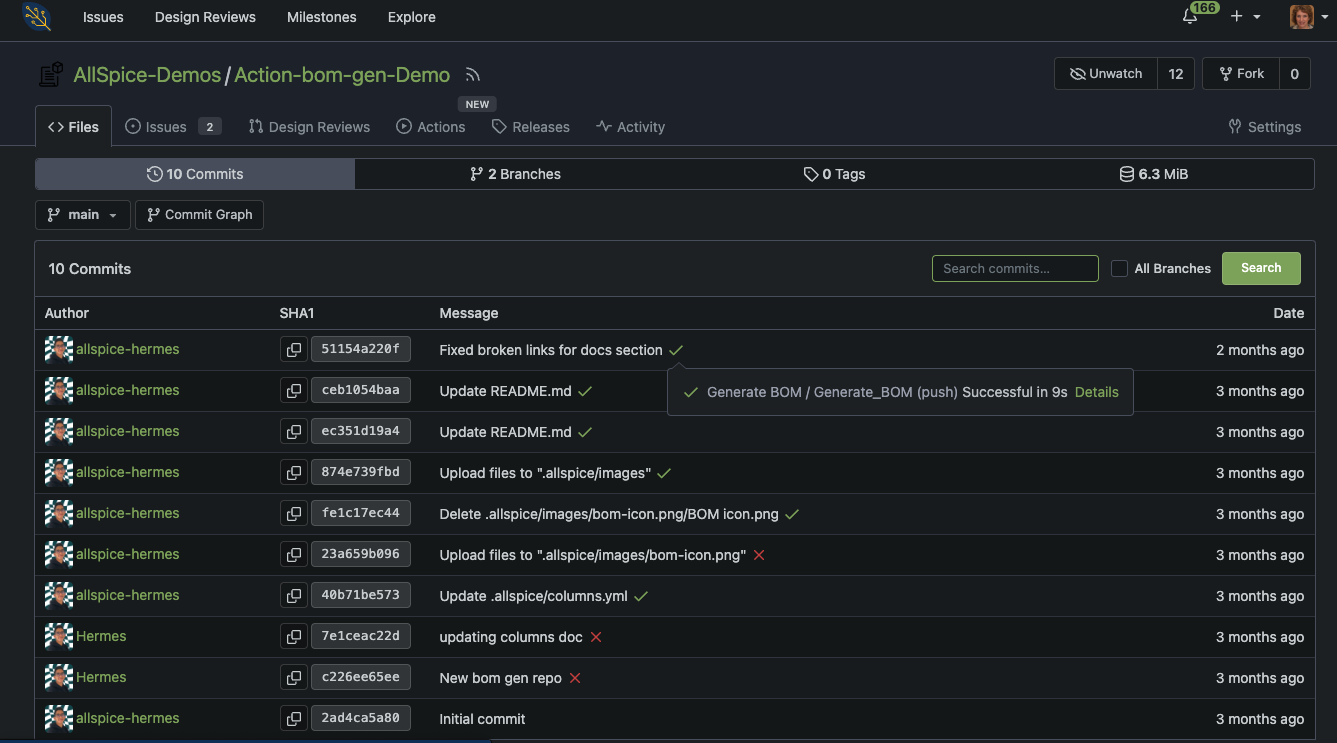
For each commit, you can check its status directly from the commit page. Simply hover over the status icon to see the result of the automation associated with that commit. The icons are interactive, allowing you to dive deeper into the details of that particular automation run.
This feature provides quick insights into whether a specific commit passed or failed its tests, linking you directly to the workflow logs and output for further investigation.
Exploring workflow runs
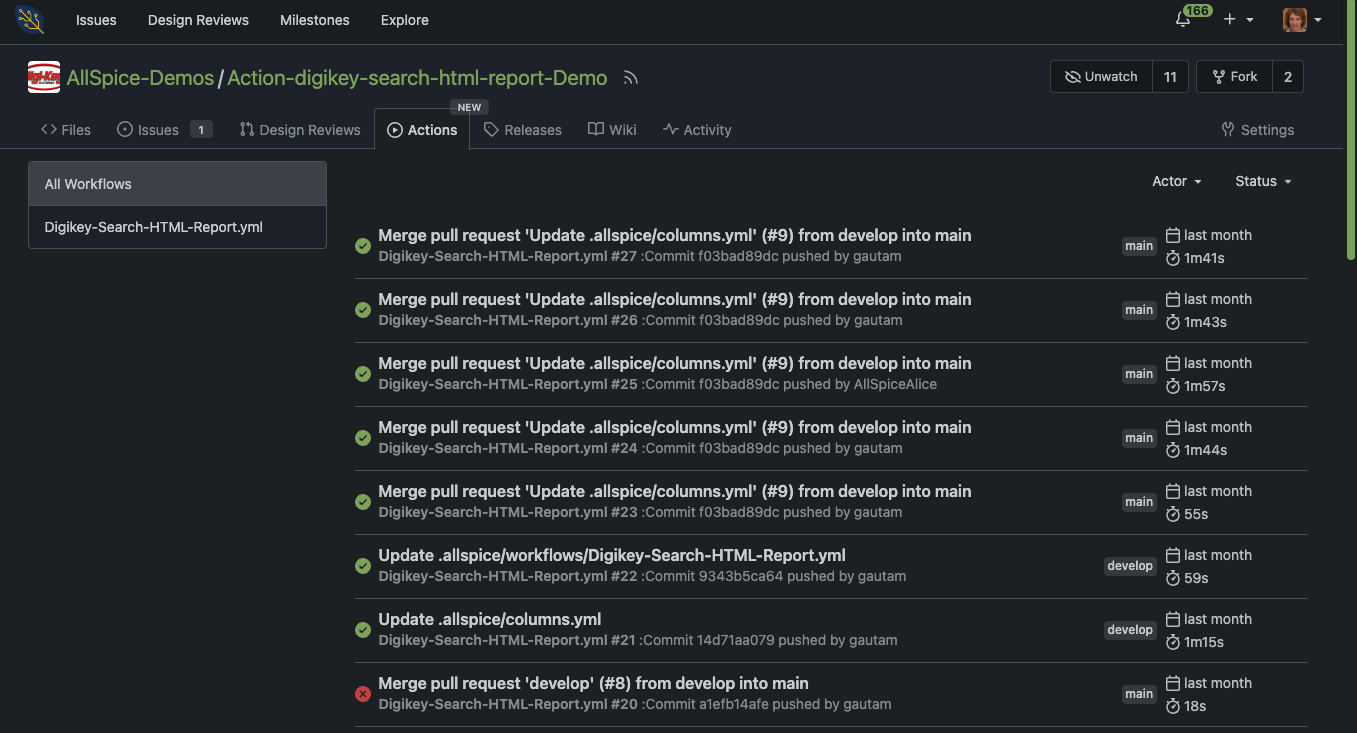
By navigating to the Automations tab in your repository, you can browse the complete history of your workflow runs. This view gives you access to past automation executions, their statuses, and logs, so you can review or debug runs from any point in time.
Filtering by workflow
If your repository is running multiple workflows (e.g., library checks, design reviews, releases), you can filter the results to show only a single workflow. This feature simplifies navigation, helping you zero in on the specific workflow you need to monitor or troubleshoot.
Inspecting Jobs within a Workflow
When a workflow consists of multiple jobs, the interface allows you to view the status and logs of each job individually. This granular view is accessible from the left-hand menu of a workflow run. By clicking on a specific job, you can inspect the logs and see its progress in detail.
This feature is especially useful for complex workflows where different jobs may run in parallel or require detailed scrutiny to ensure everything is functioning as expected.
Conclusion
Monitoring and managing your automation workflows in real time helps ensure efficiency and transparency in your development process. From inspecting commit statuses to diving into the specifics of each job, the features outlined here allow you to stay on top of your automation and troubleshoot with ease. By leveraging these tools, you can maintain a streamlined development pipeline, minimize errors, and get more immediate feedback on your work.
For more information on Automations best practices, check out this easy list of things you and your team can do to improve your design flow.