Beta: Allspice Desktop is in beta and available only to select organizations, as of October 30, 2026. Features, supported systems and these instructions may change between releases, and some features may be incomplete. If your organization doesn't see the Desktop App button in Allspice Hub, it isn't part of the beta yet. Contact your Allspice account team to learn more. We welcome your feedback.
Applies to Allspice Desktop v0.2.0 and later. This guide covers the desktop app.
What a subdesign is
A subdesign is a design that lives in its own Allspice project and is used inside a larger design. A power supply, an RF front end, a sensor daughterboard, a standard connector block — any piece you want to design once and reuse across products.
Instead of copying those files into every project that needs them, you add the subdesign's project to your top-level project. Your project then records two things:
- which project the subdesign comes from, and
- exactly which version of it your design is built against.
That second point is what makes subdesigns useful. Your top-level design is always tied to a specific, known version of every block it contains. When the block's owner publishes a change, your project doesn't move on its own — it keeps building against the version you chose until you decide to take the new one. Everyone who opens your project gets the same versions you did.
A subdesign appears in your project folder as a normal folder of design files, named after the project it came from. Your ECAD tool reads it like any other folder on disk.
Best practice: don't edit a subdesign's files in place. A subdesign's folder is a copy of another project, held at the version your design records. Change it where it comes from — open that project on its own, make the change there, and then bring it into your design with Update. Work done directly in the subdesign's folder isn't part of either project, and the next update replaces it.
Adding a shared component library? Same feature, same steps — see
Also useful: component libraries at the end of this guide.
Three words appear throughout the app and this guide:
| Term | What it means |
|---|---|
| Project | A repository on Allspice — your top-level design, or a reusable block of its own. |
| Subdesign | Another project that your project uses, at a version your project records. |
| Pin | To set which branch of a subdesign your project follows. |
Before you start
You need:
- Allspice Desktop v0.2.0 or later, signed in to your Allspice server. The version is shown at the bottom-left of the window.
- Your top-level project cloned in Allspice Desktop and open on a branch you're allowed to push to. If the branch is protected, the app tells you and you'll need to switch to another branch.
- Read access to the project you want to add. You can only add a project you can already see on Allspice — the picker shows exactly the projects your account has access to.
- The subdesign's design files already pushed to Allspice. A project that only exists on your machine can't be added as a subdesign.
Where subdesigns live in the app
Open a project in Allspice Desktop. Below the project's status, there's a SUBDESIGNS section.
- When the project has no subdesigns, the section explains what a subdesign is.
- When it has some, each one is a row with its name, the branch it follows underneath, and a status badge on the right showing whether it's current.
- The … button to the right of the SUBDESIGNS heading holds the actions for the whole list: Add subdesign and Update all.
- The … button on each row holds the actions for that one subdesign: Update, Pin and Remove.
Add a subdesign to your design
Step 1 — open the Subdesigns menu
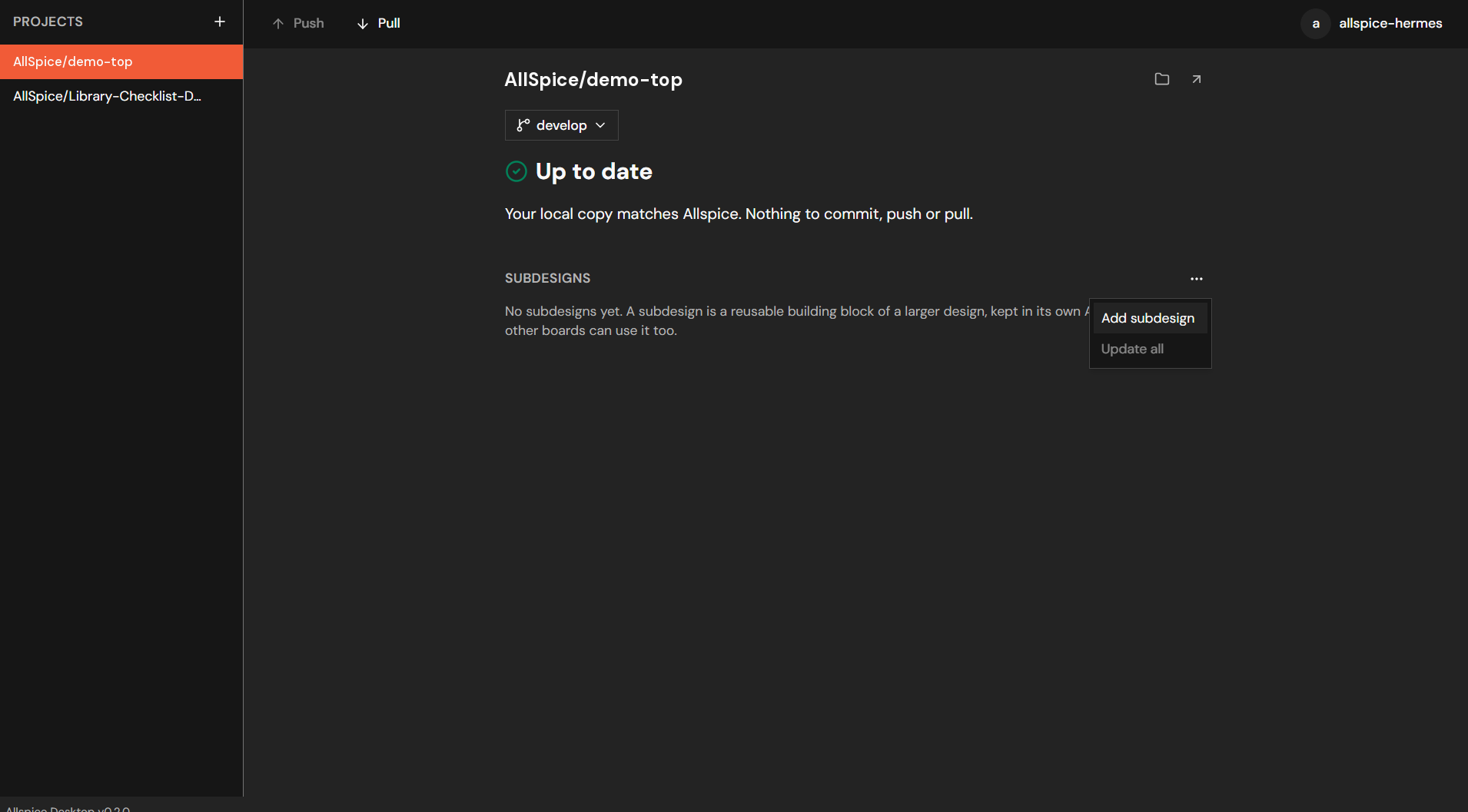
On your top-level project's page, click the … button next to the SUBDESIGNS heading, then select Add subdesign.
Step 2 — choose the project to add
The Add subdesign dialog lists the projects on Allspice that you have access to. Type in the search box to narrow the list by project or organization name, select the project you want, then click Add subdesign.
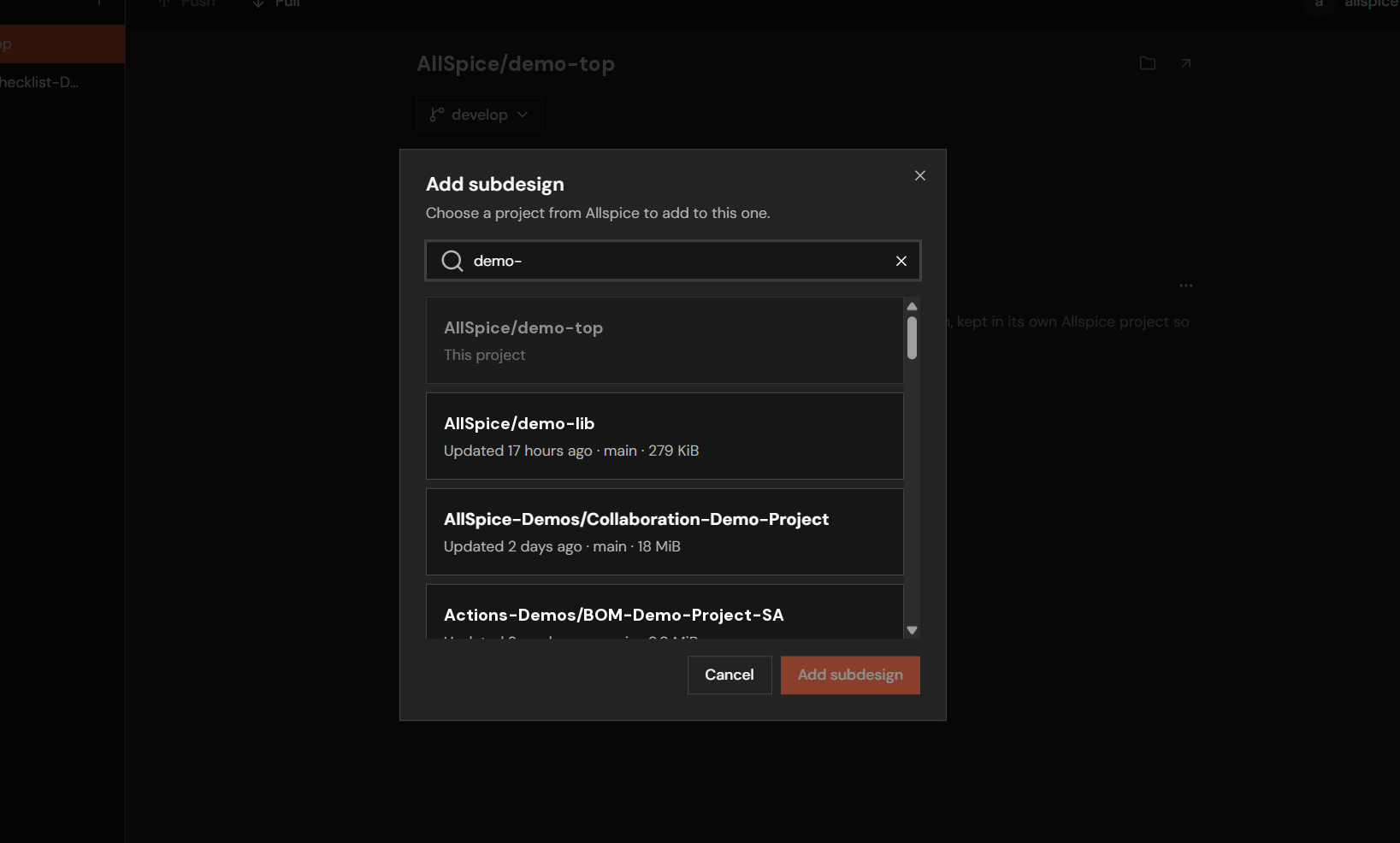
Two entries in the list can't be selected, and the dialog says why:
- This project — a project can't contain itself.
- Already a subdesign — that project is already in your design.
What the app does
When you confirm:
- It downloads the project's files into a new folder at the top of your project folder, named after the project. For example, adding
AllSpice/demo-libcreates ademo-libfolder. - It records the subdesign as following that project's default branch, at the newest version on that branch at this moment.
- The new subdesign appears in the SUBDESIGNS list, and the addition appears as a change waiting to be committed.
Note: The app always names the folder after the project. If a folder with that name already exists in your project, the subdesign can't be added — rename or remove the existing folder first.
Commit and push the change
Adding, updating, pinning or removing a subdesign is a change to your design, exactly like editing a schematic. It isn't shared with anyone until you commit it and push it.
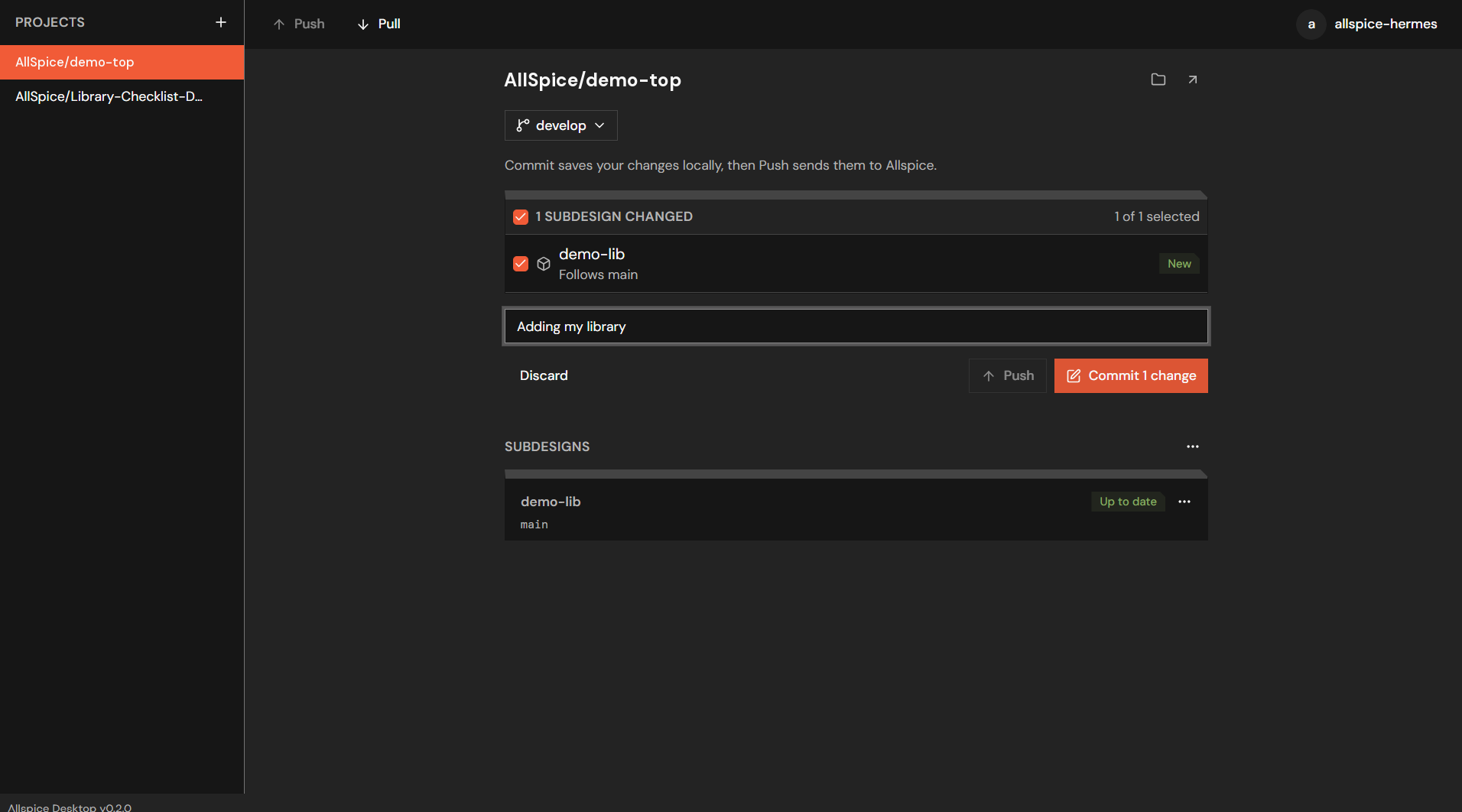
Step 1 — commit
The change appears on the project page under 1 SUBDESIGN CHANGED, in its own list, separate from changed files. The row shows the subdesign's name, the branch it follows, and what kind of change it is — New, Updated or Deleted.
Make sure the change is selected, type a short message describing it (for example
"Add demo-lib power stage"), and click Commit.
Step 2 — push
The commit is now saved on your machine only. Click Push to send it to Allspice.
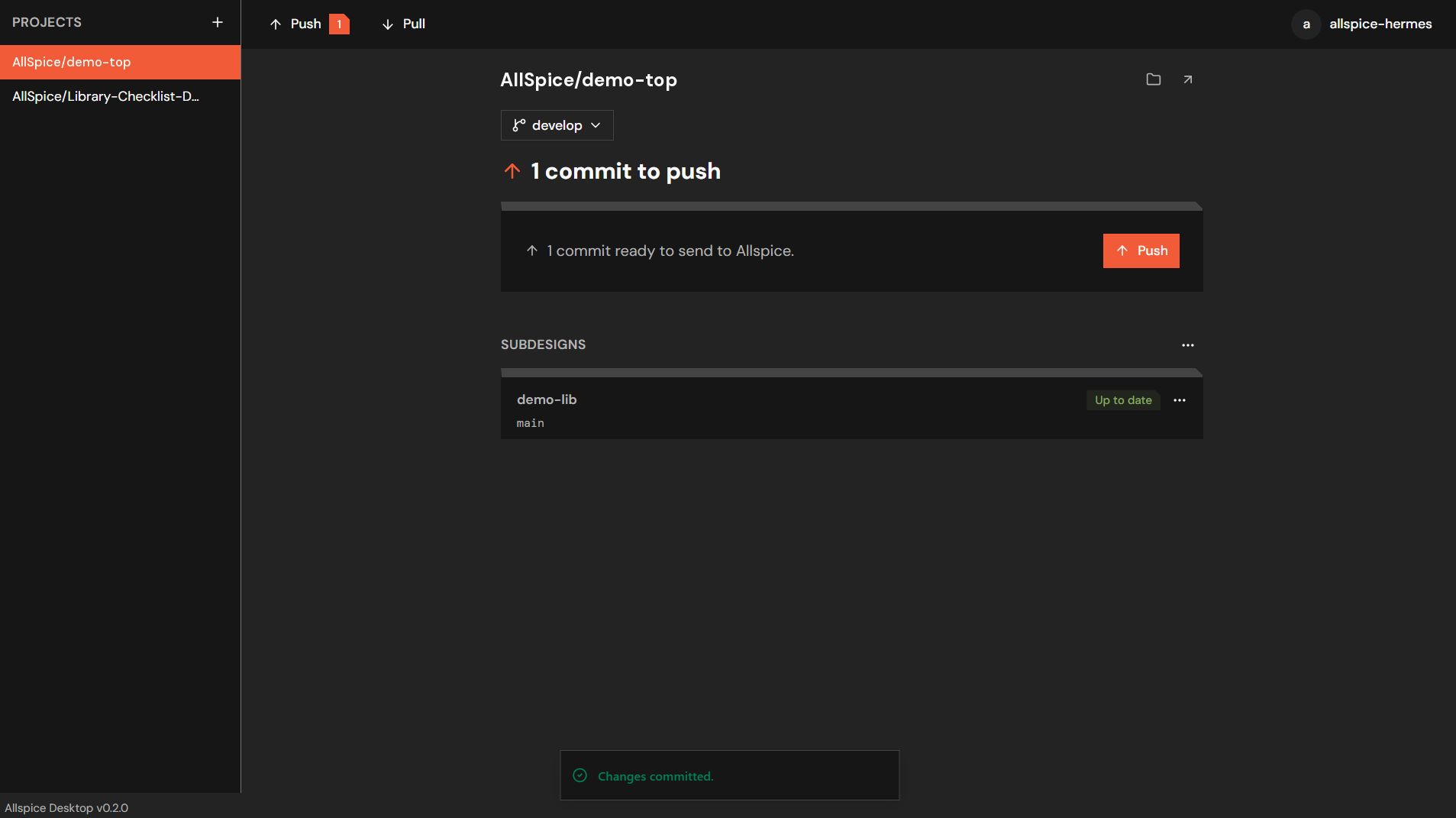
Once pushed, anyone who pulls your project gets the same subdesign at the same version.
Changed your mind? Select the change and click Discard before committing. The subdesign goes back to the way it was at your last commit. Discarding can't be undone.
Choose which branch a subdesign follows (pin)
A subdesign follows one branch of its project. That branch decides what Update gives you — it is the line of work you want to take changes from. Your design still sits on a specific version of that branch; following a branch never moves your design on its own.
A new subdesign follows its project's default branch. Pin it to a different branch when, for example, the block's owner stages work on develop and you want to build against released work onmain, or the opposite — you're developing alongside them and want their in-progress work.
Step 1 — open the subdesign's menu
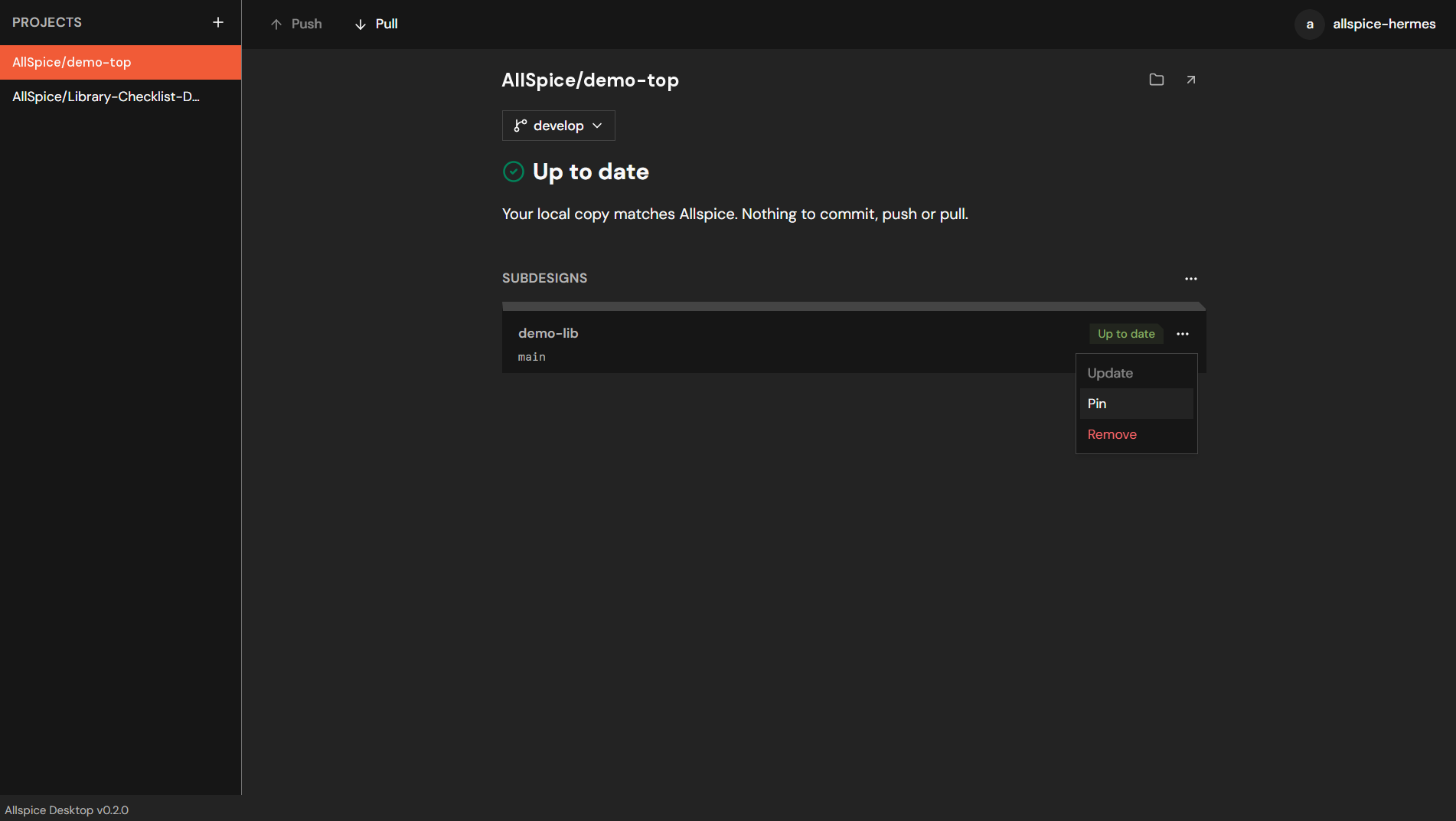
Click the … button on the subdesign's row and select Pin.
Step 2 — choose the branch
The Pin subdesign to a branch dialog lists the branches of the subdesign's project. Choose one and click Pin.
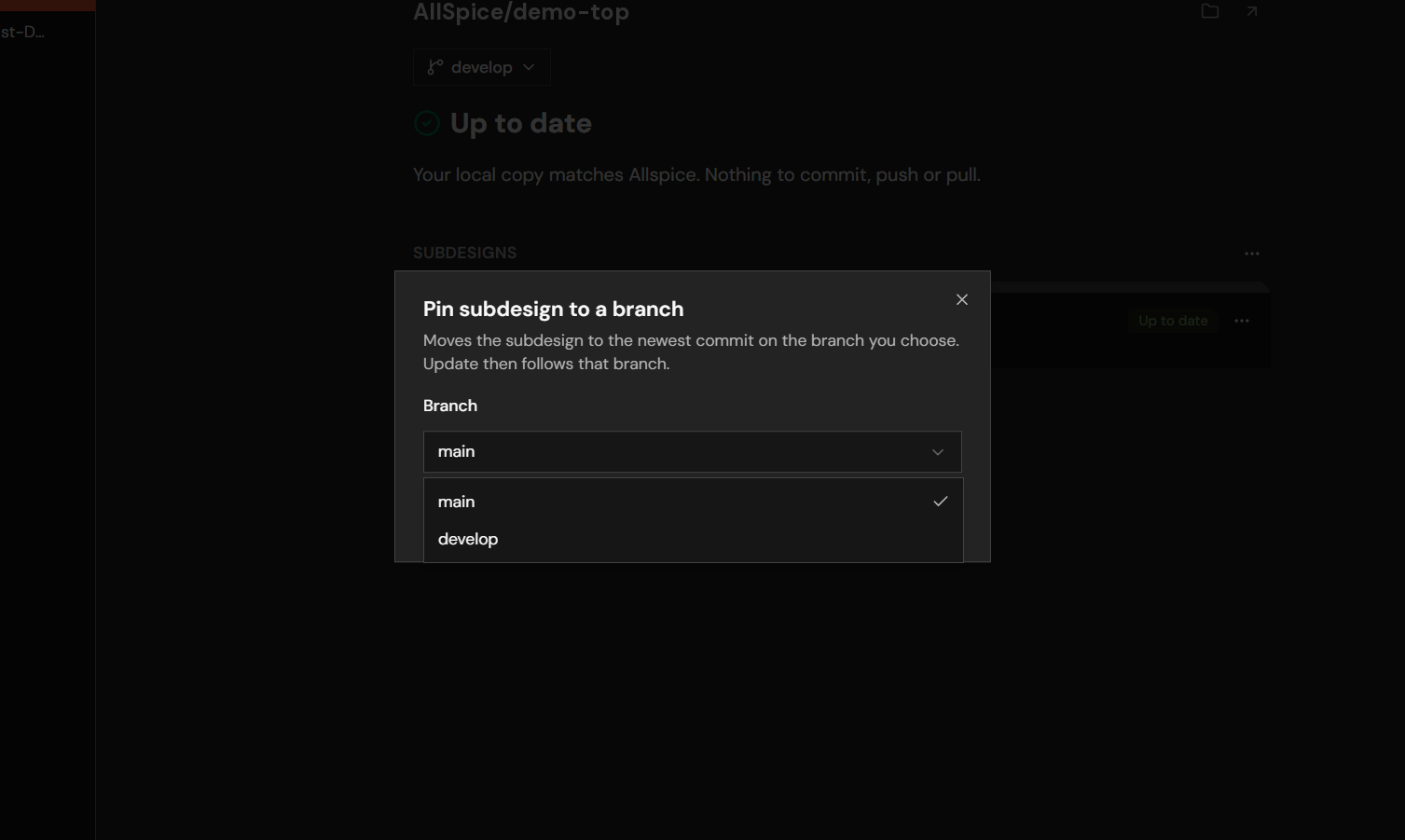
The app moves the subdesign to the newest version on the branch you chose, and the branch name under the subdesign's name changes to match. From then on, Update follows that branch.
Pinning is a change to your design: commit and push it like any other.
Update to the newest version of a subdesign
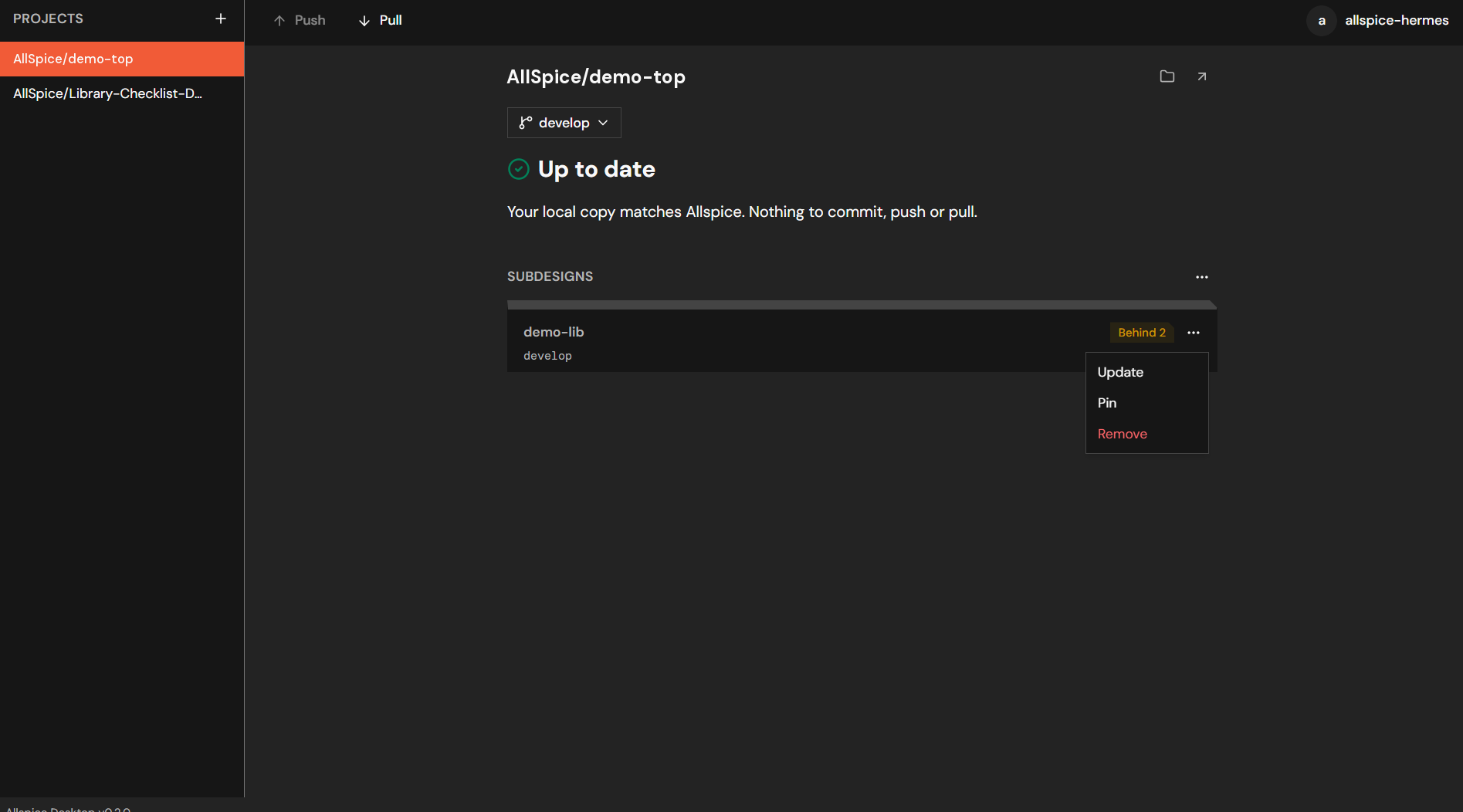
When a subdesign's owner pushes work to the branch you follow, the subdesign's badge changes to Behind N — your design is N versions behind that branch. It keeps using the version you're on until you choose to move.
Update one subdesign
Click the … button on the row and select Update. The app moves the subdesign to the newest version on its branch.
Update every subdesign at once
Click the … button next to the SUBDESIGNS heading and select Update all. Every subdesign that is behind moves to the newest version on the branch it follows. The option is unavailable when nothing is behind.
After the update
The change appears in your changed-subdesigns list as Updated, with how many new commits it brings in. Review the result in your ECAD tool, then commit and push so your team builds against the same version.
Good practice: Update deliberately, not reflexively. A pulled-in change to a shared block can affect your schematic or layout — update when you have time to open the design and check it.
Getting the subdesigns your teammates added
You never have to download subdesigns yourself.
- When you open a project, the app downloads its subdesigns, and any subdesigns inside them.
- After you pull, or switch branches, the app checks out the subdesign versions that branch records — so your folders always match the design you're looking at.
If a teammate adds a block and pushes, you simply pull, and the folder appears in your project at the version they committed.
Remove a subdesign
Click the … button on the subdesign's row and select Remove, then confirm. This deletes the subdesign's folder and its files from your project folder. It does not affect the subdesign's own project on Allspice.
Like every other subdesign change, the removal has to be committed and pushed.
If you want to put a different project in the same folder name, commit the removal first, then add the new subdesign.
Reference: status badges
Each subdesign row carries a badge that tells you how your version compares with the branch it follows. The app re-checks Allspice while the window is in focus, so the badge stays current while you work.
| Badge | What it means | What to do |
|---|---|---|
| Up to date | Your design uses the newest version on the branch this subdesign follows. | Nothing. |
| Behind N | The branch has N newer commits than the version your design uses. | Update when you're ready to take them. |
| Pinned | The subdesign is held at a fixed version and doesn't follow a branch. | Pin it to a branch if you want update checks. |
| Missing | The subdesign's files aren't on your machine yet. | Reopen the project; the app downloads them. |
Other badges appear only when something needs attention — see Troubleshooting.
Troubleshooting
Badges that mean something is wrong
| Badge | What it means and what to do |
|---|---|
| Needs checkout | The files on your machine are at a different version than your design records. Reopen the project to check out the recorded version. |
| Unreachable | The app couldn't reach Allspice to check the subdesign. Check your network or VPN connection. |
| Unresolved | Allspice rejected the check — usually you no longer have access to the subdesign's project. Ask its owner for access. |
| External | The subdesign comes from somewhere other than your Allspice server. The app shows it but doesn't manage it; update and pin aren't available. |
| Invalid | The subdesign's address can't be read, or no version is recorded. Contact whoever added it, or remove and re-add it. |
| Missing | If a subdesign stays Missing after you reopen the project, check your network or VPN connection, and that you still have access to its project on Allspice. |
Messages the app shows
| What you see | What it means and what to do |
|---|---|
| "That folder name is already in use in this project." | Your project already has a folder named after the project you're adding. Rename or remove it first. |
| "A subdesign was removed from this folder. Commit that change first…" | You removed a subdesign and are adding another in the same place. Commit the removal, then add. |
| "A subdesign can't include itself, directly or through other subdesigns." | The project you picked already contains your project somewhere in its own subdesigns. Pick a different project. |
| "This subdesign is not on Allspice." | The subdesign's project no longer exists on the server, or was renamed or moved. Check it on Allspice. |
| "This subdesign does not follow a branch." | It's held at a fixed version. Use Pin to set a branch, then Update. |
| "{branch} is protected. Switch to another branch to make changes." | You can't push subdesign changes to this branch. Switch to a working branch, make the change there, and open a pull request on Allspice. |
Also useful: component libraries
The same feature handles a second, very common case: keeping a shared component library inside a design at a known version.
A component library isn't really a subdesign — it's a repository of parts, symbols and footprints that your designs draw from, and that Allspice also uses when rendering your design. But it's a dependency of your design in exactly the same sense, so you add it exactly the same way: open the … menu next to SUBDESIGNS, select Add subdesign, and pick the library's project.
Doing so gives you the same benefits:
- Your design records which version of the library it was built against, so a board that built cleanly last quarter still resolves to the same parts today.
- Everyone on the team, and every render on Allspice, uses the same library version you do.
- When the library is updated, your project shows Behind N — and you take the new parts when you're ready, by clicking Update, then committing and pushing.
Pin the library to the branch your organization publishes approved parts on, so Update always means "take the latest approved parts".