Use the project page to save your changes, send them to Allspice, and get your teammates' changes. You can also switch branches and remove a project from the app.
Beta: Allspice Desktop is in beta and available only to select organizations, as of October 13, 2026. Features, supported systems and these instructions may change between releases, and some features may be incomplete. If your organization doesn't see the Download Allspice Desktop button in Allspice Hub, it isn't part of the beta yet. Contact your Allspice account team to learn more. We welcome your feedback.
Open a project
The sidebar lists the projects you cloned or created in the app. The project you opened most recently is at the top. Select a project to open it.
To see a project's folder path, point to its name in the sidebar.
Save your changes (commit)
When you edit design files in the project folder, the project page lists the changed files. Each file is marked New, Modified, or Deleted.
- Select the files you want to include. The app selects all files at first.
- In Describe what you changed…, describe your change.
- Select Commit.
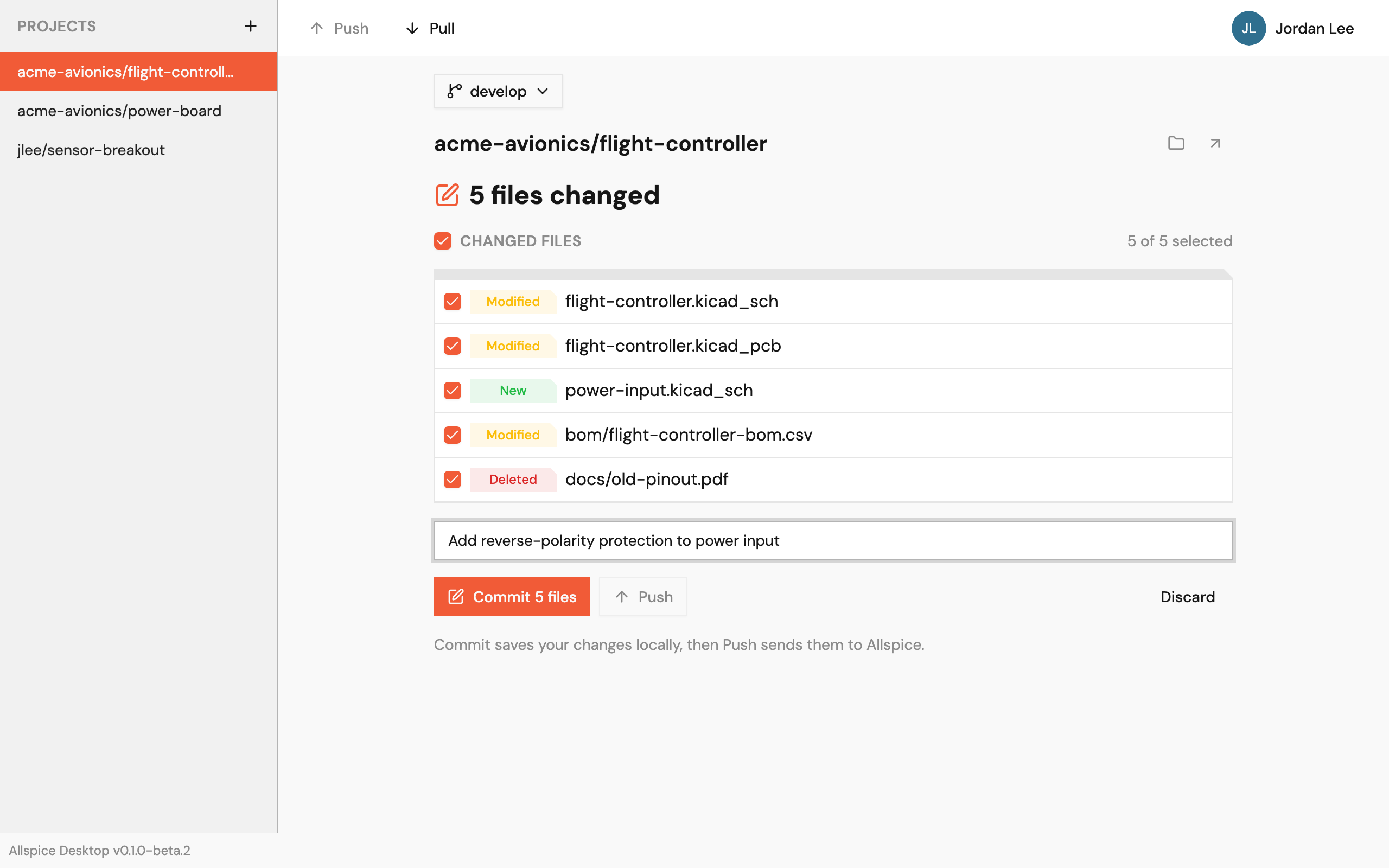
A commit saves your changes on your computer only. To send them to Allspice, push them.
Send your changes to Allspice (push)
After you commit, the page shows how many commits are ready to send.
- Select Push.
- Wait for the push to finish. The toolbar shows its progress.
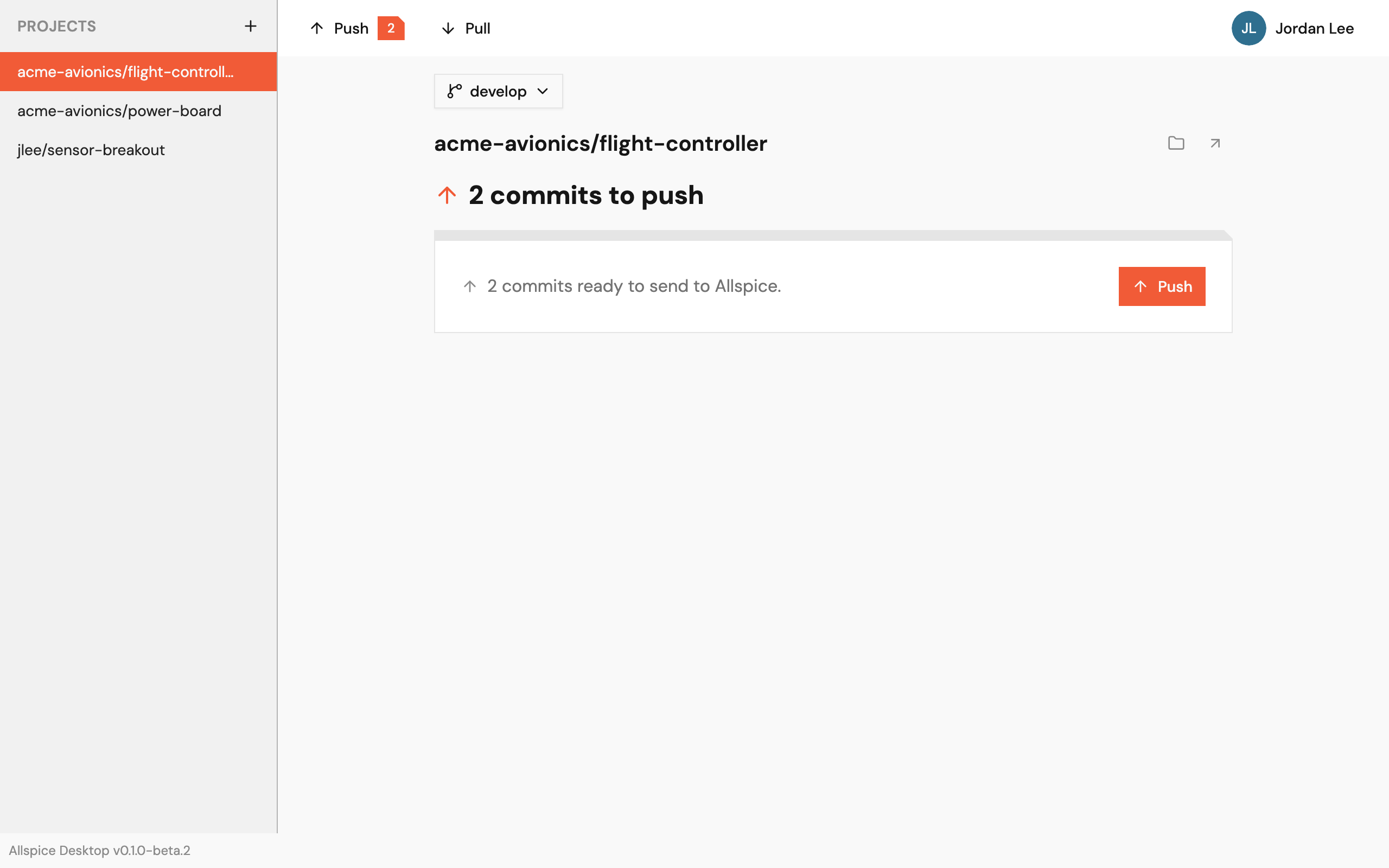
You can also select Push in the toolbar at the top of the page. The number beside it shows how many commits wait to be pushed.
If there are commits on Allspice that you don't have, pull them first. Push stays disabled until you do.
Get your teammates' changes (pull)
When there are new commits on Allspice, the page shows how many are ready to pull.
- Select Pull.
- Wait for the pull to finish.
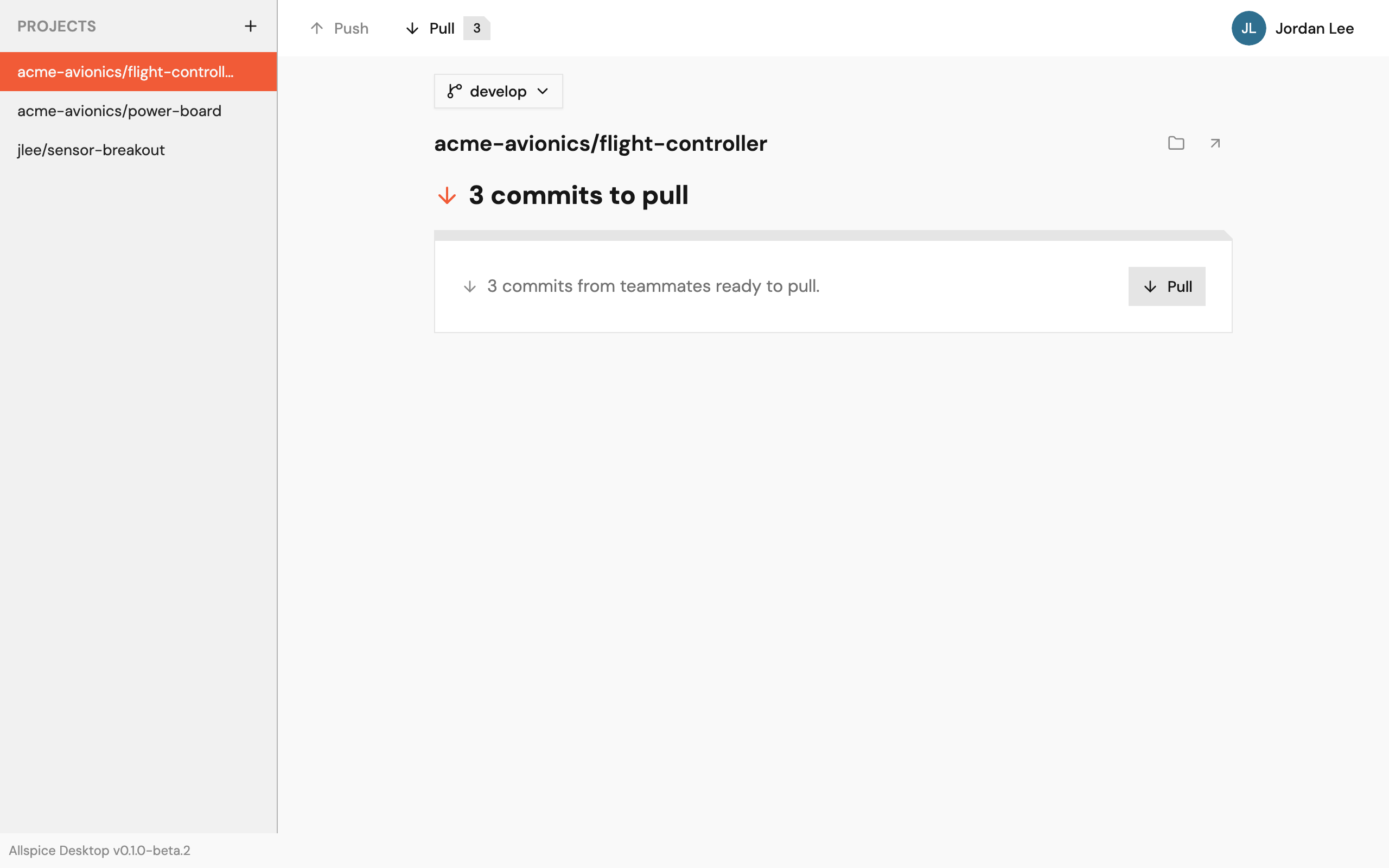
Commit or discard your own changes before you pull.
The page refreshes when you switch back to the app, and every 30 seconds while the app is in front. It picks up edits you make in other programs and new commits on Allspice.
When everything matches Allspice, the page shows Up to date.
.png)
If a pull runs into conflicting changes
If commits on Allspice change the same files you changed, the app cancels the pull. Your changes on your computer stay safe.
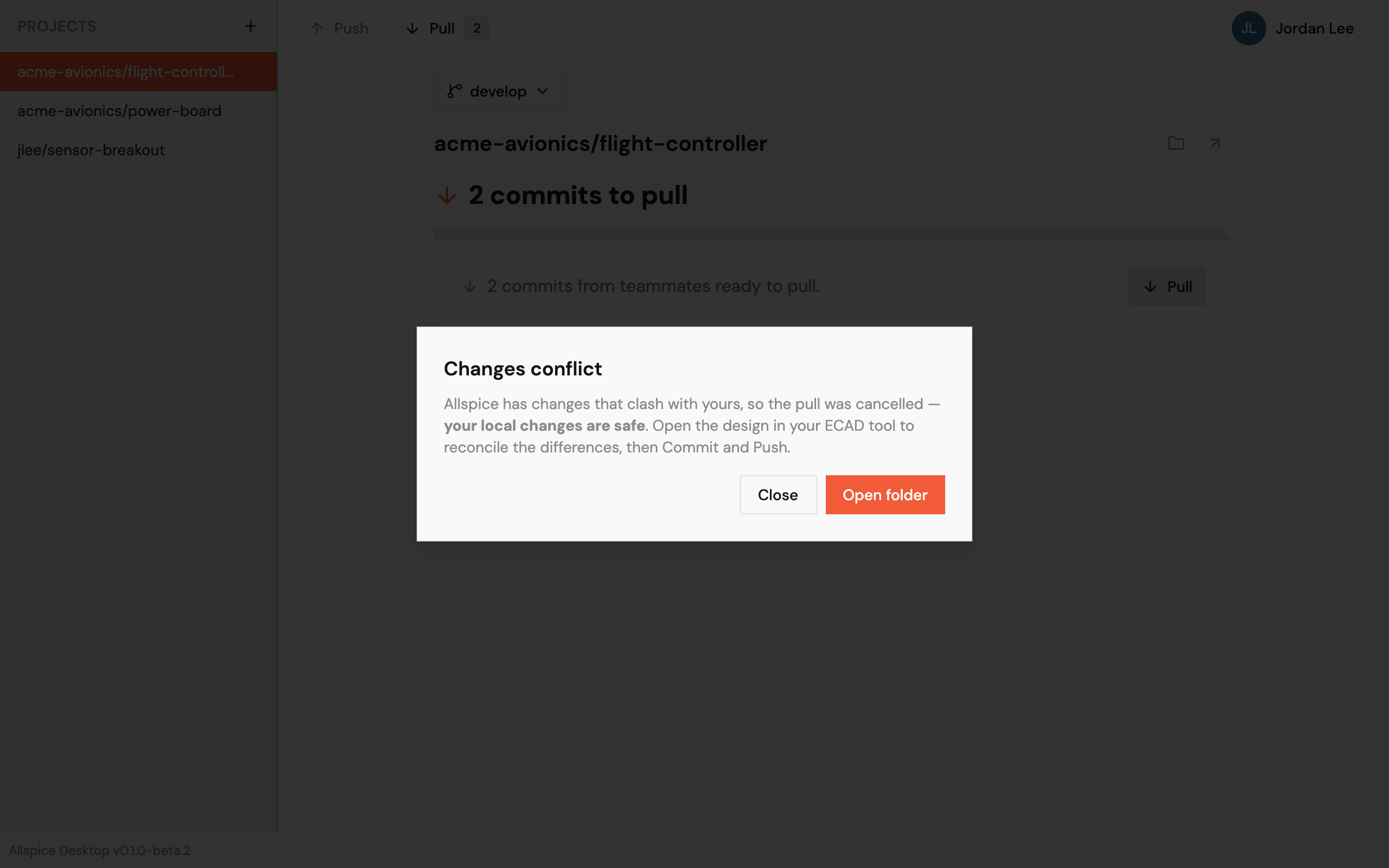
- Select Open folder.
- Open the design in your ECAD tool and combine the changes.
- Commit and push.
Throw away changes (discard)
Warning: You can't undo a discard.
- Select the files whose changes you want to throw away.
- Select Discard.
- Select Discard changes to confirm.
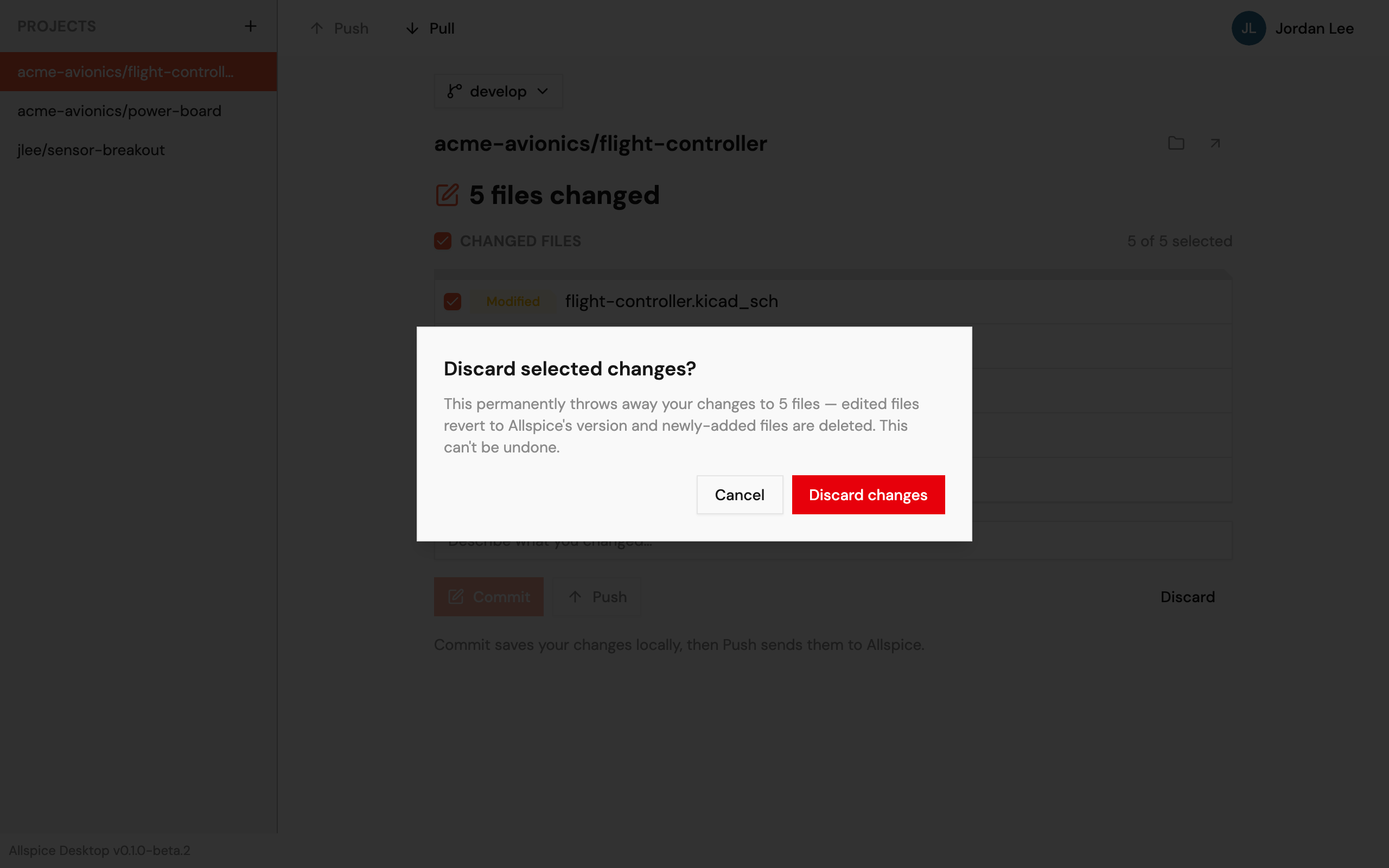
Edited files go back to their last committed version. New files are deleted.
Switch branches
- Select the branch menu above the project name. It shows the current branch.
- Select a branch. To find one, type part of its name in Filter branches….
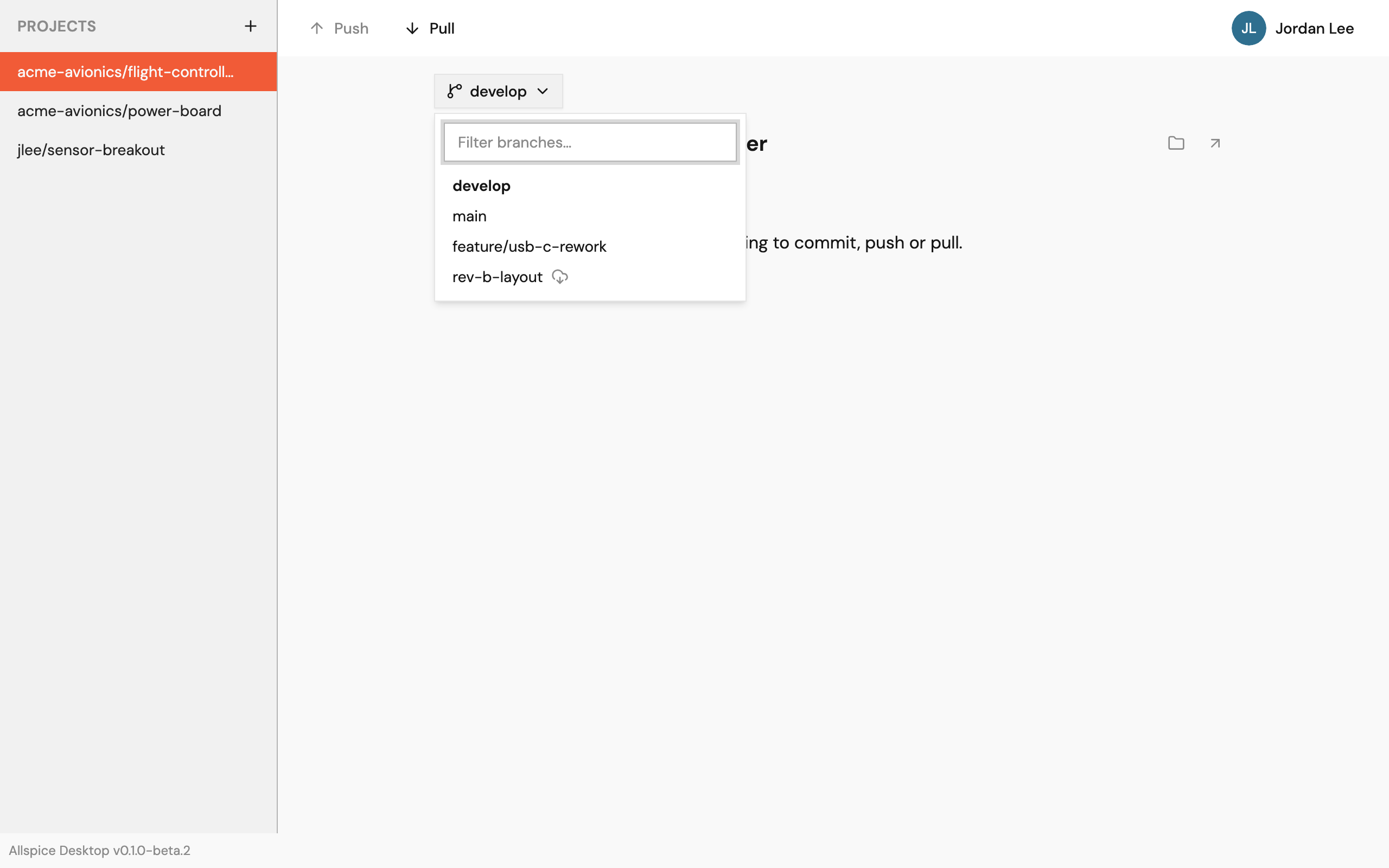
A cloud icon marks a branch that exists only on Allspice. You can still select it.
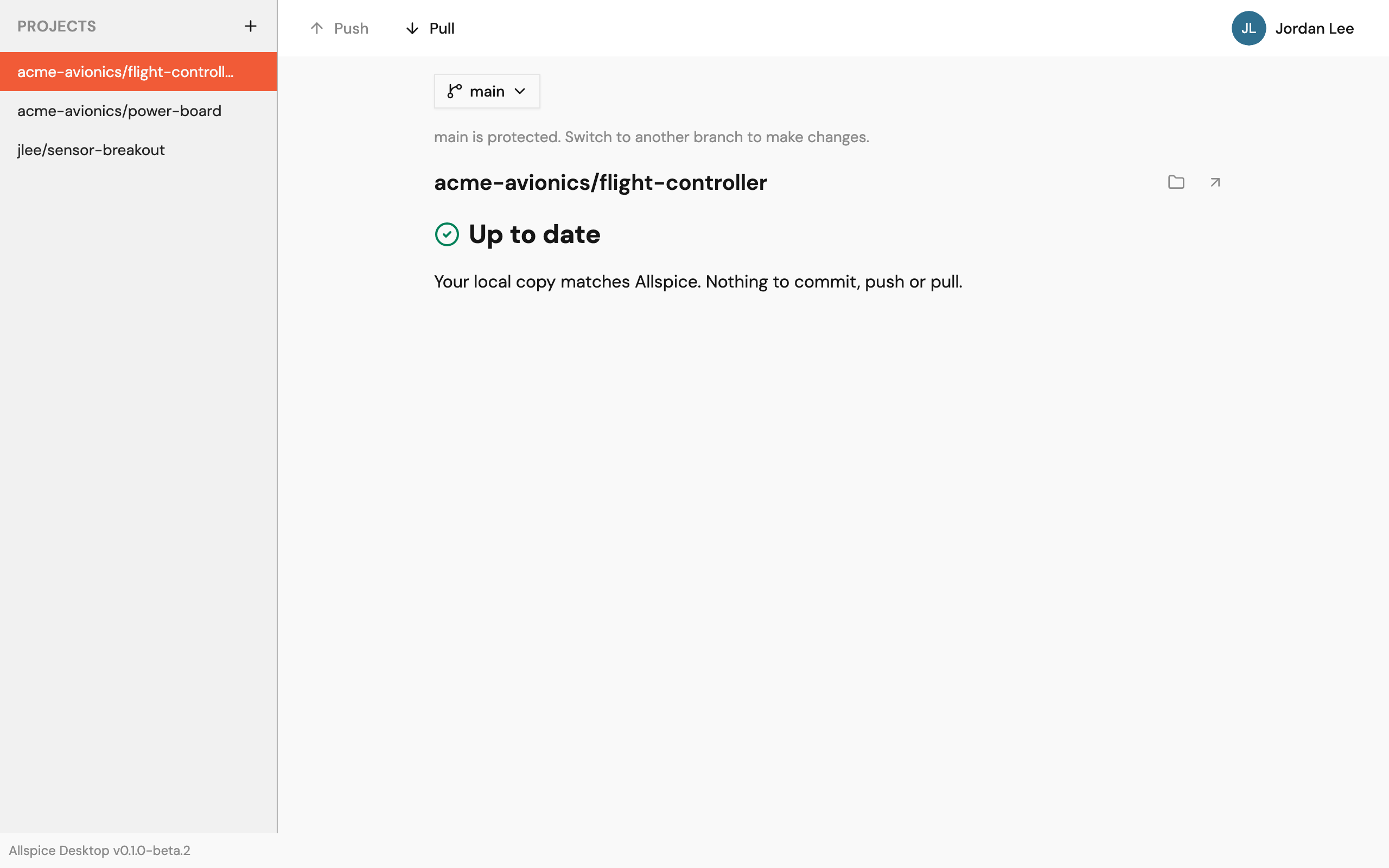
If your changes block the switch, the app tells you. Commit or discard them, then switch again.
If you can't push to the current branch, the page tells you, and Commit and Push are off. Switch to another branch, such as develop, to make changes.
Open the project folder or the project on Allspice
Use the two buttons beside the project name:
- Open project folder opens the folder in File Explorer.
- Open in Allspice opens the project in your browser, on the current branch.
Remove a project from the app
Removing a project takes it off the sidebar. It doesn't delete the project folder on your computer, and it doesn't delete the project on Allspice.
- In the sidebar, right-click the project. You can also point to the project and select ….
- Select Remove.
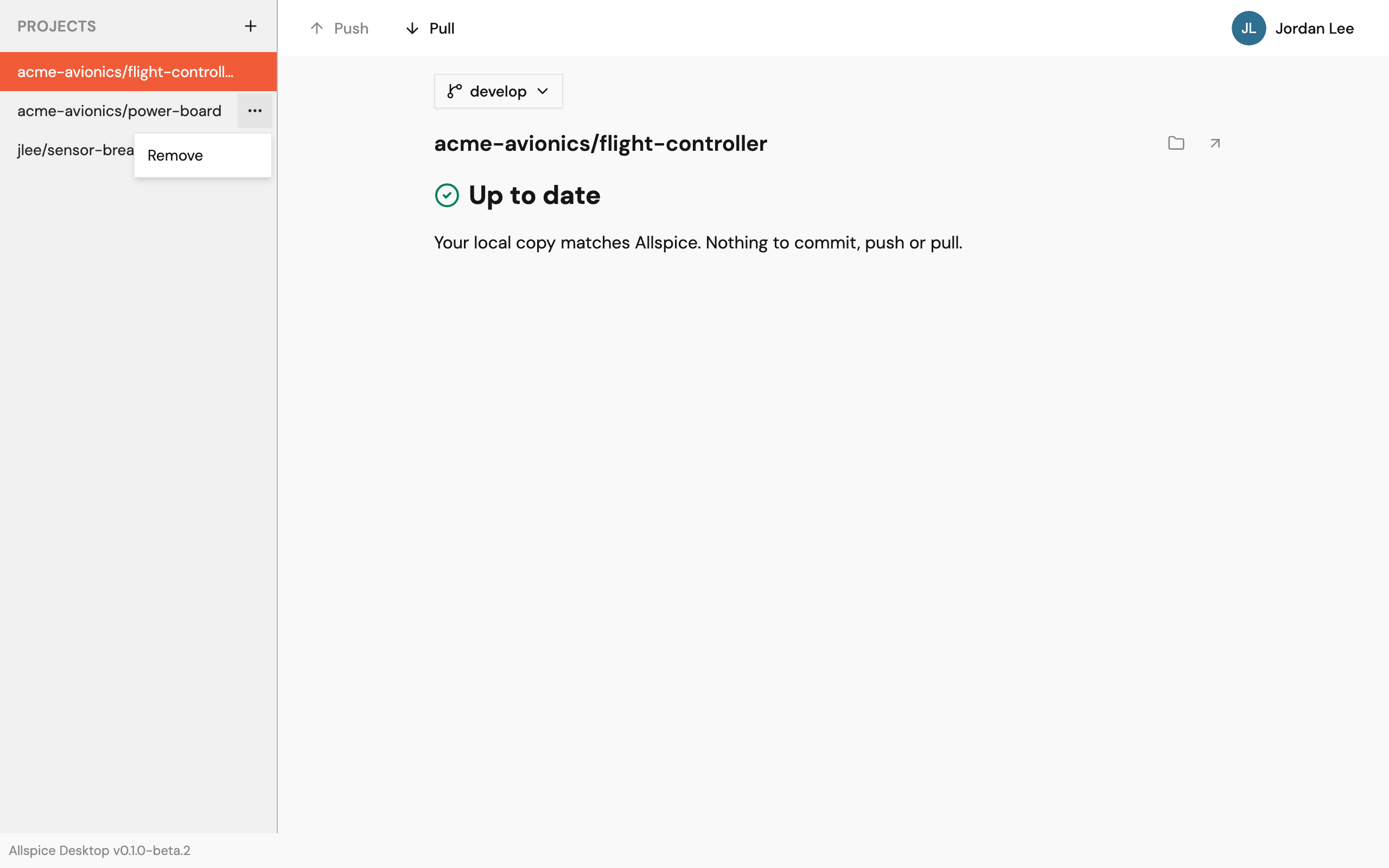
- Select Remove to confirm.
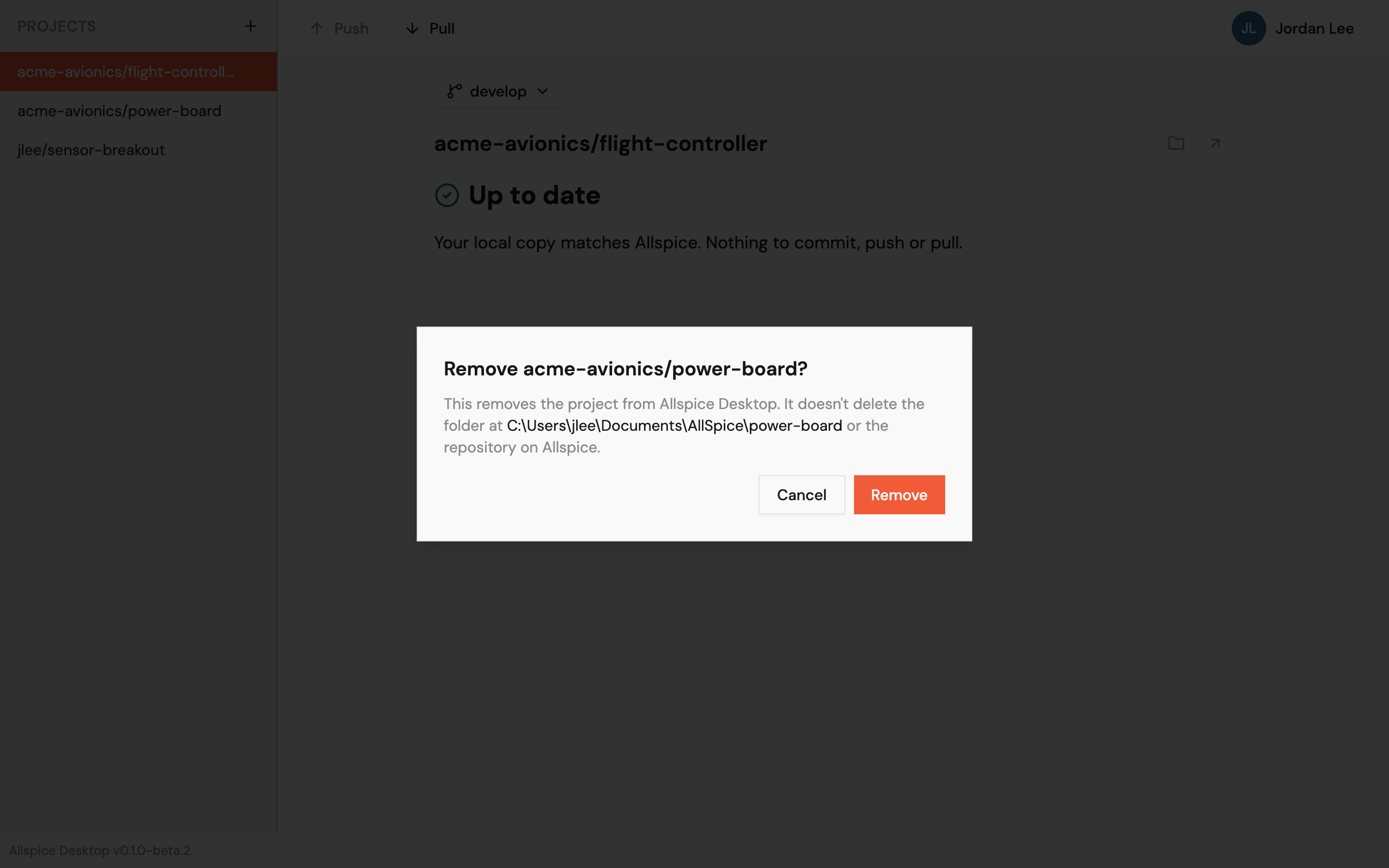
To add the project back, clone it again.
If the app can't find a project's files
If you move or delete a project folder, the project page shows Can't find this project's files and the path where the app looked.
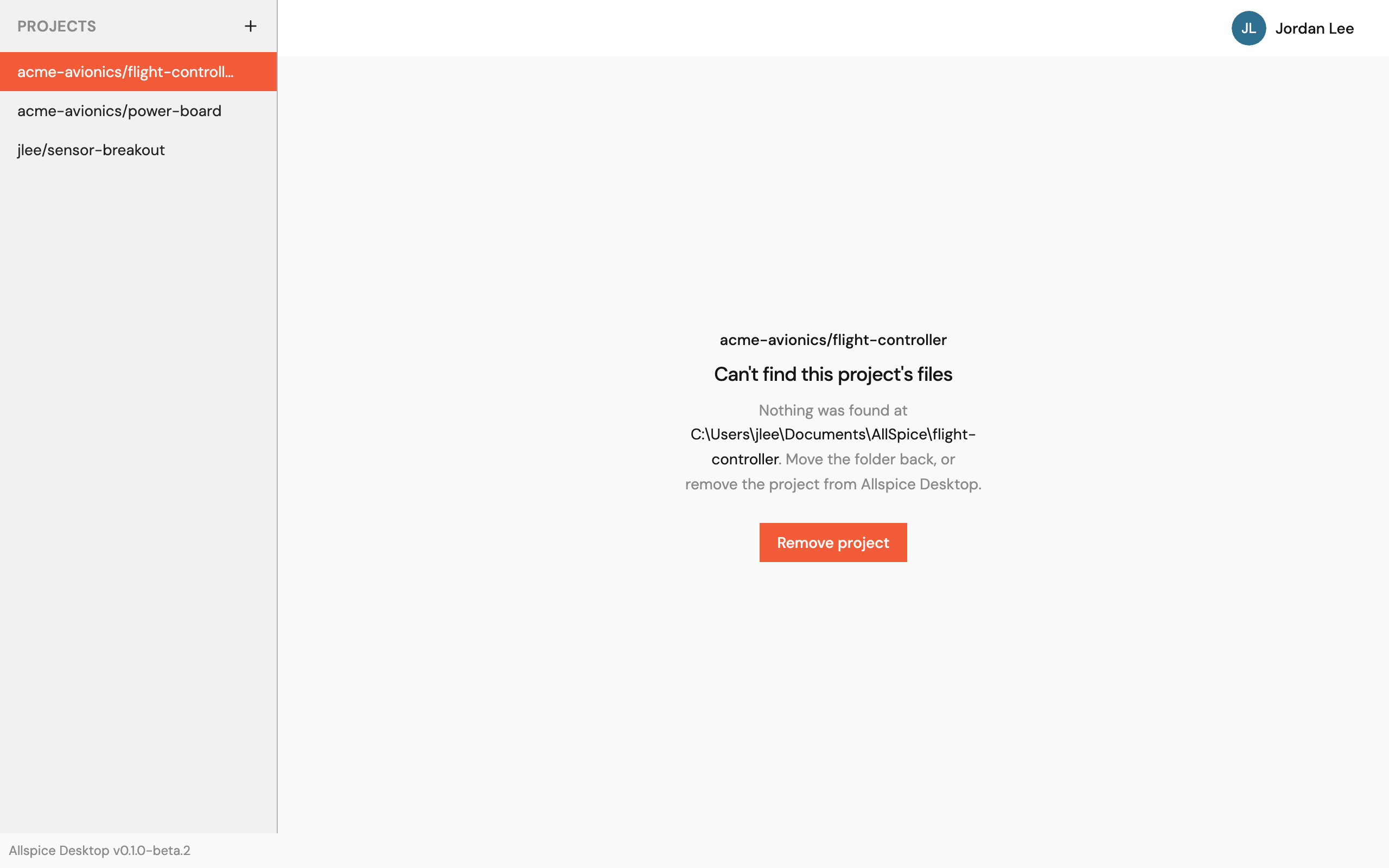
Move the folder back to that path, or select Remove project to remove the project from the app.