Clone a project to copy it from Allspice to a folder on your computer. You can then work on its files and send your changes back to Allspice.
Beta: Allspice Desktop is in beta and available only to select organizations, as of October 13, 2026. Features, supported systems and these instructions may change between releases, and some features may be incomplete. If your organization doesn't see the Download Allspice Desktop button in Allspice Hub, it isn't part of the beta yet. Contact your Allspice account team to learn more. We welcome your feedback.
Start a clone
If you have no projects in the app yet, select Clone Project on the Create your first
project screen.

If you already have projects, select + beside Projects in the sidebar. Then select Clone Project.
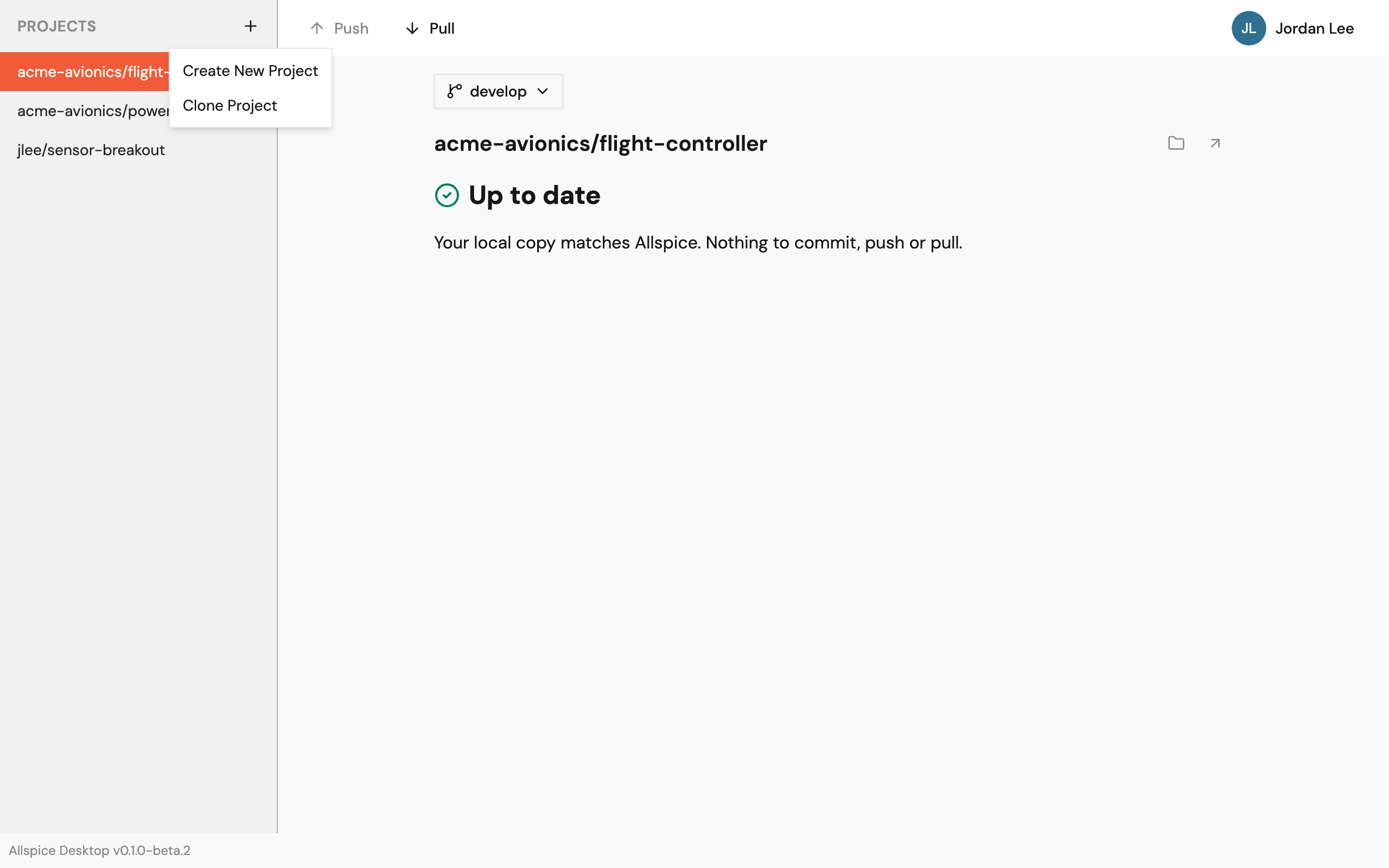
Pick a project
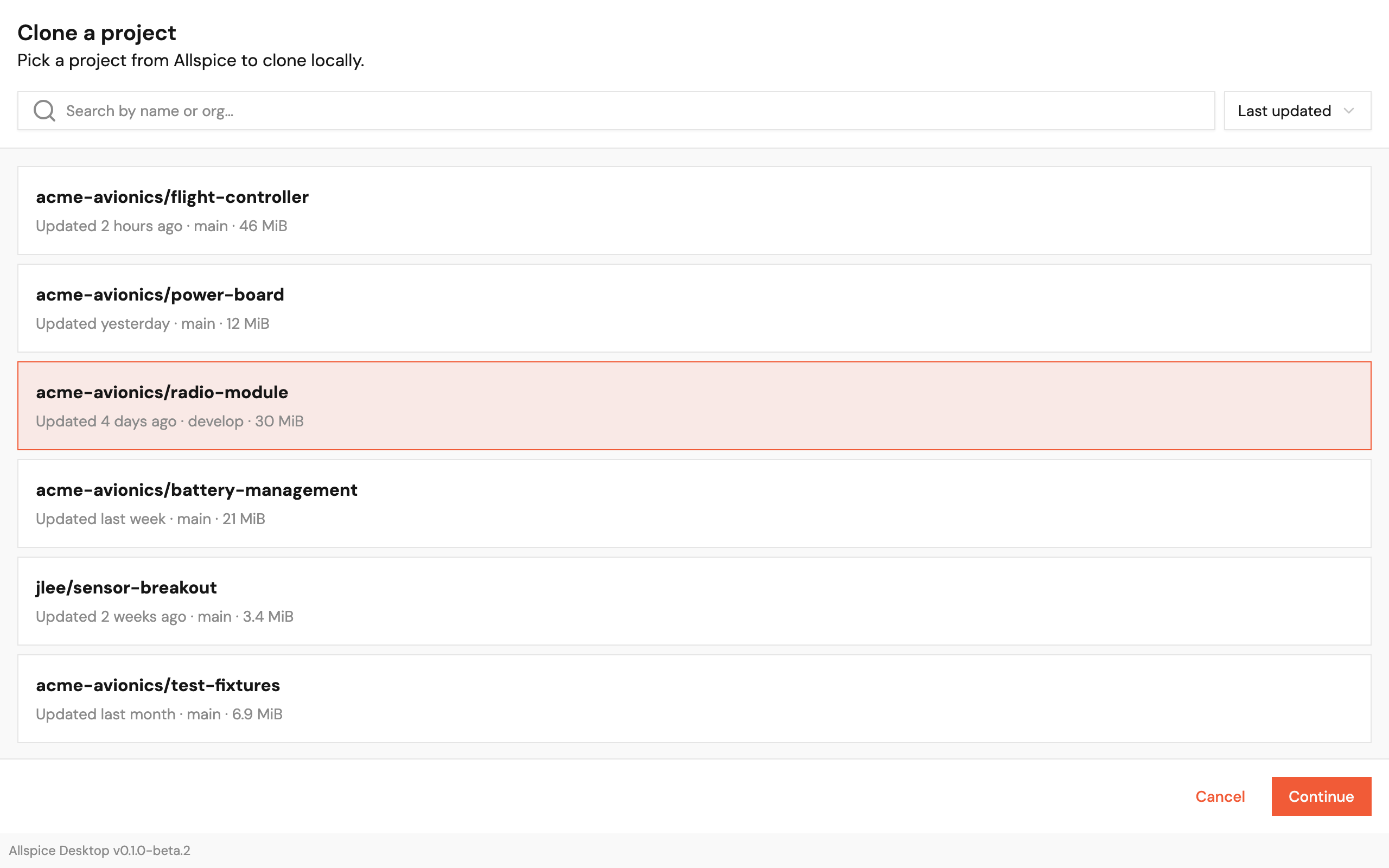
The app lists the Allspice projects you can access. Each project shows when it was last updated, its default branch, and its size.
- To find a project, type part of its name or its organization in the search box.
- To change the order, open the sort menu and select Last updated, Name, Created, or Size.
.png)
- Select a project.
- Select Continue.
Choose a folder
The app suggests a folder in ~/Documents/AllSpice/, named after the project.
- To use another location, select Choose… and pick a folder. You can also type a full path in Clone to.
- Select Clone project.
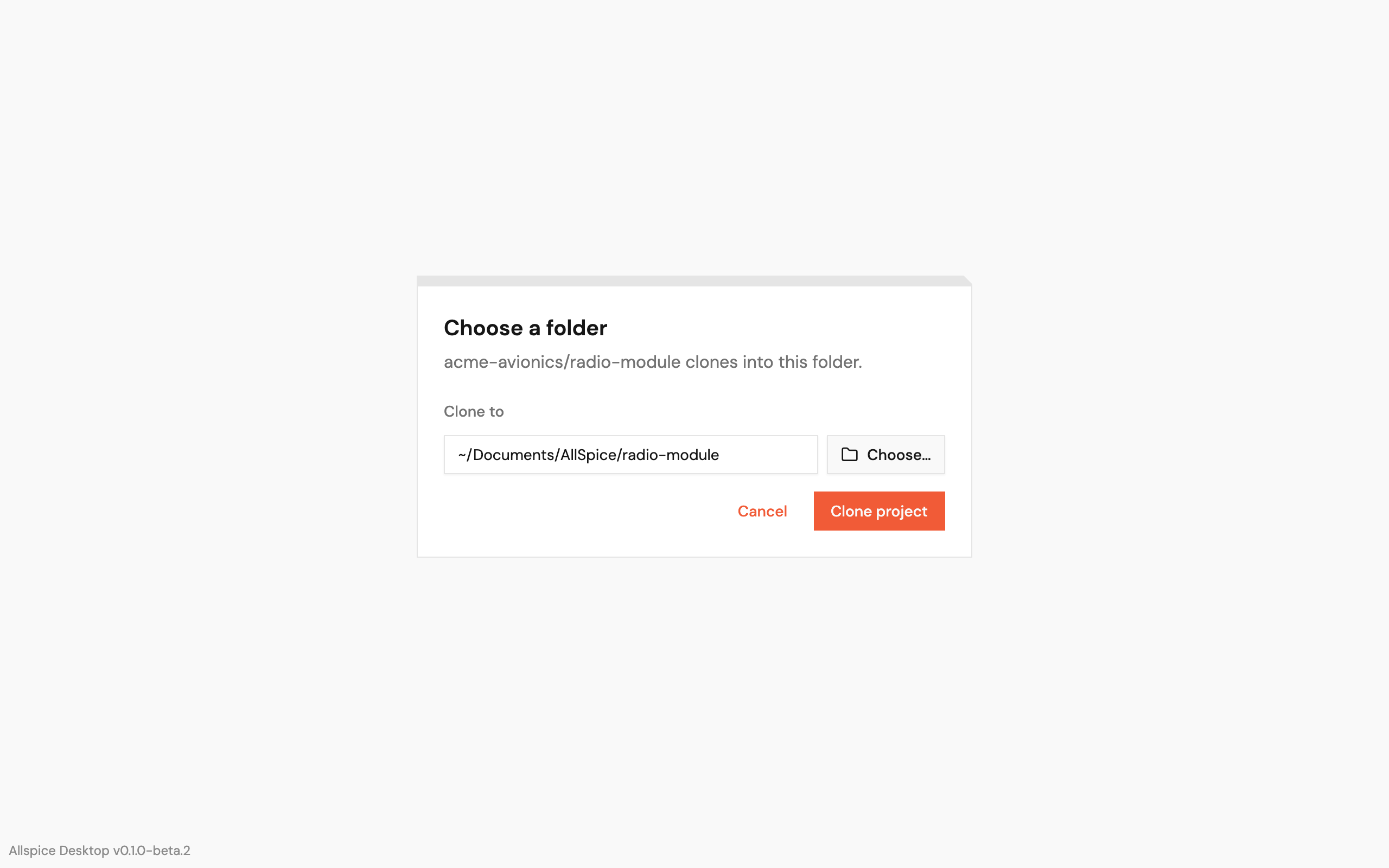
The folder must not exist yet. If it does, the app asks you to choose a different folder.
Wait for the clone to finish
The app shows its progress while it copies the project.

When the clone finishes, the app opens the project. If the project has a develop branch, the app switches to it.