The first time you open Allspice Desktop, connect it to your Allspice server. Then sign in with your Allspice account.
Beta: Allspice Desktop is in beta and available only to select organizations, as of October 13, 2026. Features, supported systems and these instructions may change between releases, and some features may be incomplete. If your organization doesn't see the Download Allspice Desktop button in Allspice Hub, it isn't part of the beta yet. Contact your Allspice account team to learn more. We welcome your feedback.
Connect to your Allspice server
- In Your Allspice server address, enter the address you use to open Allspice in your browser.
For example, entercompany.allspice.io. - Select Continue.
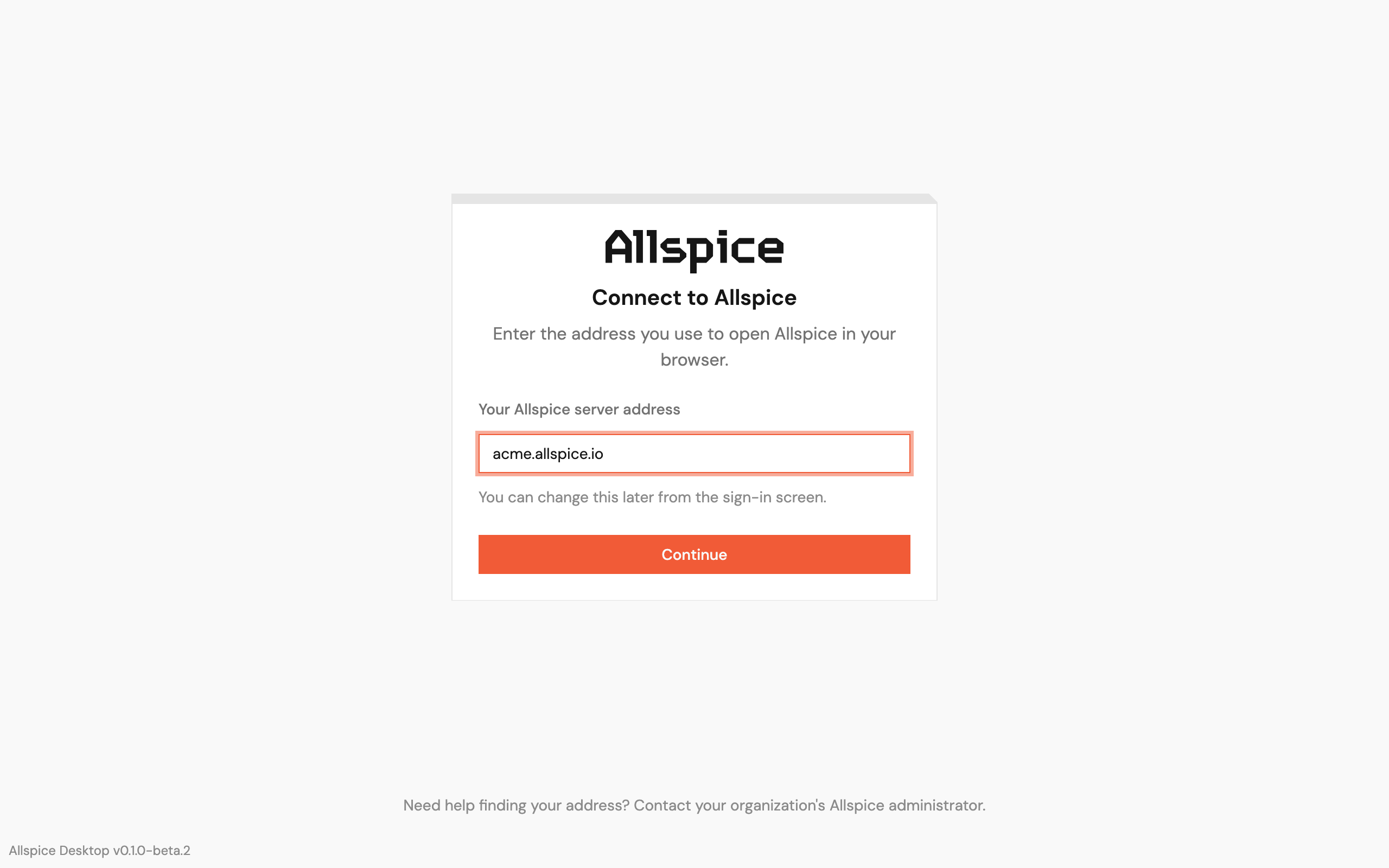
The app checks that the address belongs to an Allspice server before it saves it.
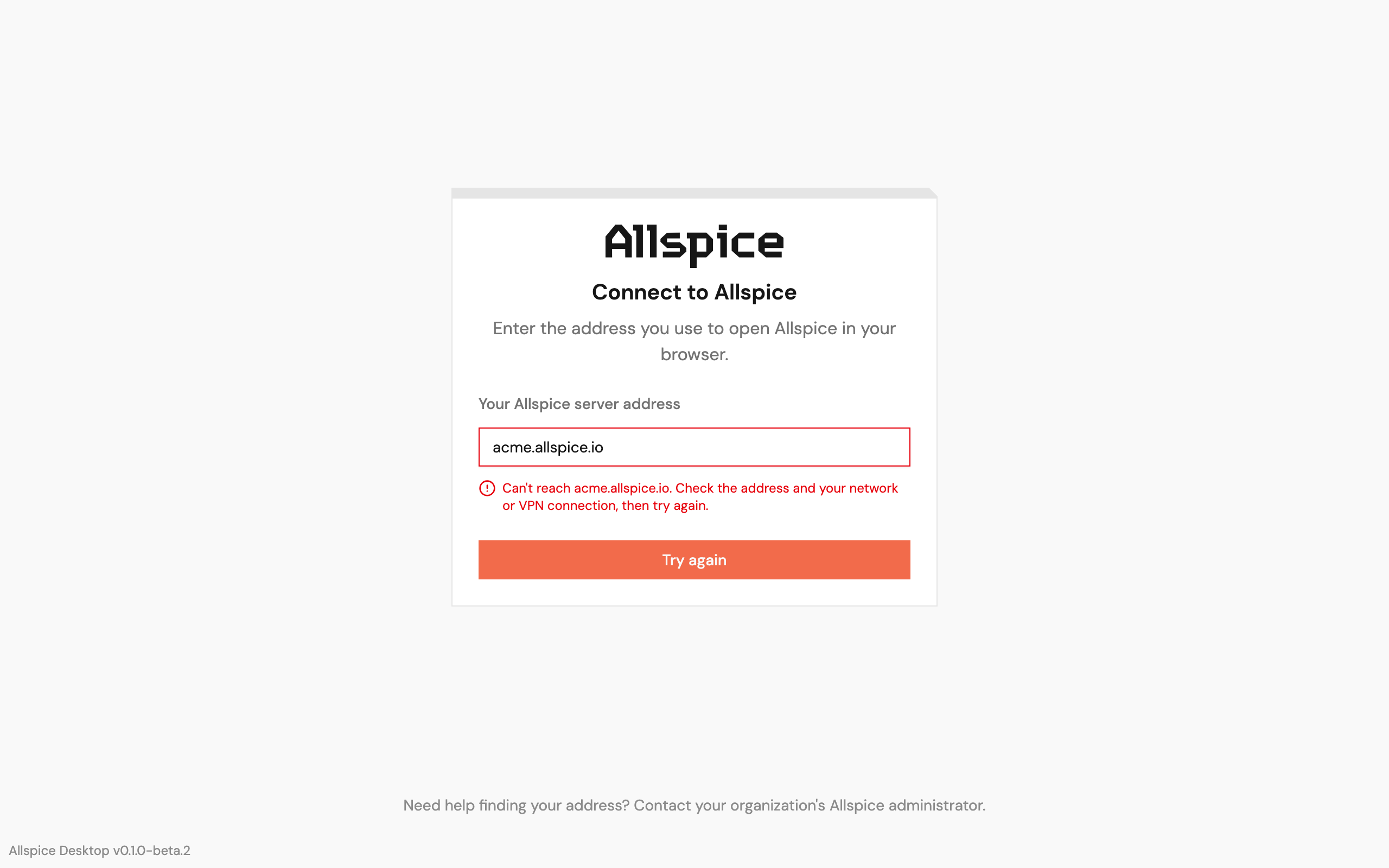
If the app can't reach the server, it shows a message. Check the address and your network or VPN connection, then select Try again.
If you don't know your server address, ask your organization's Allspice administrator.
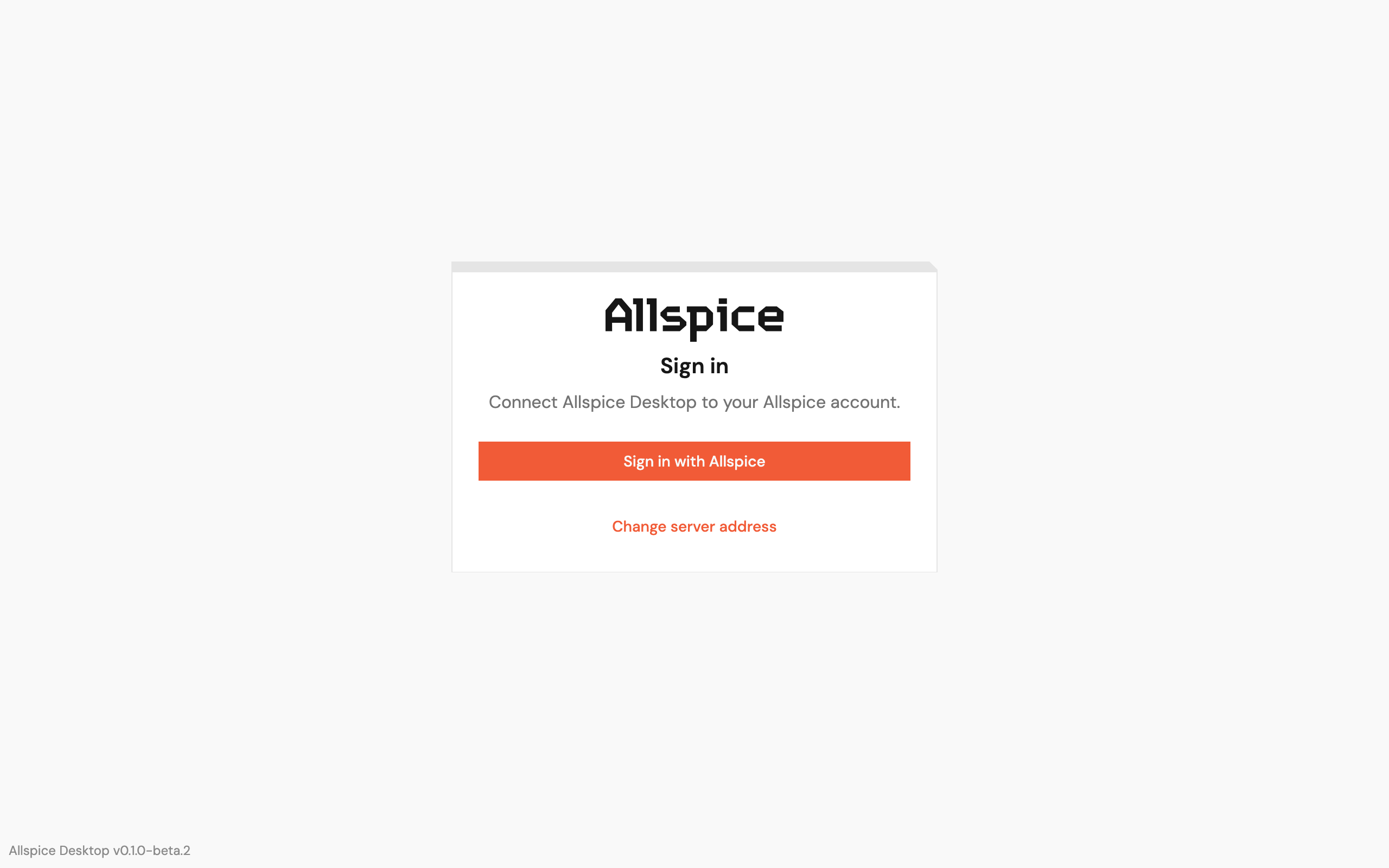
Sign in
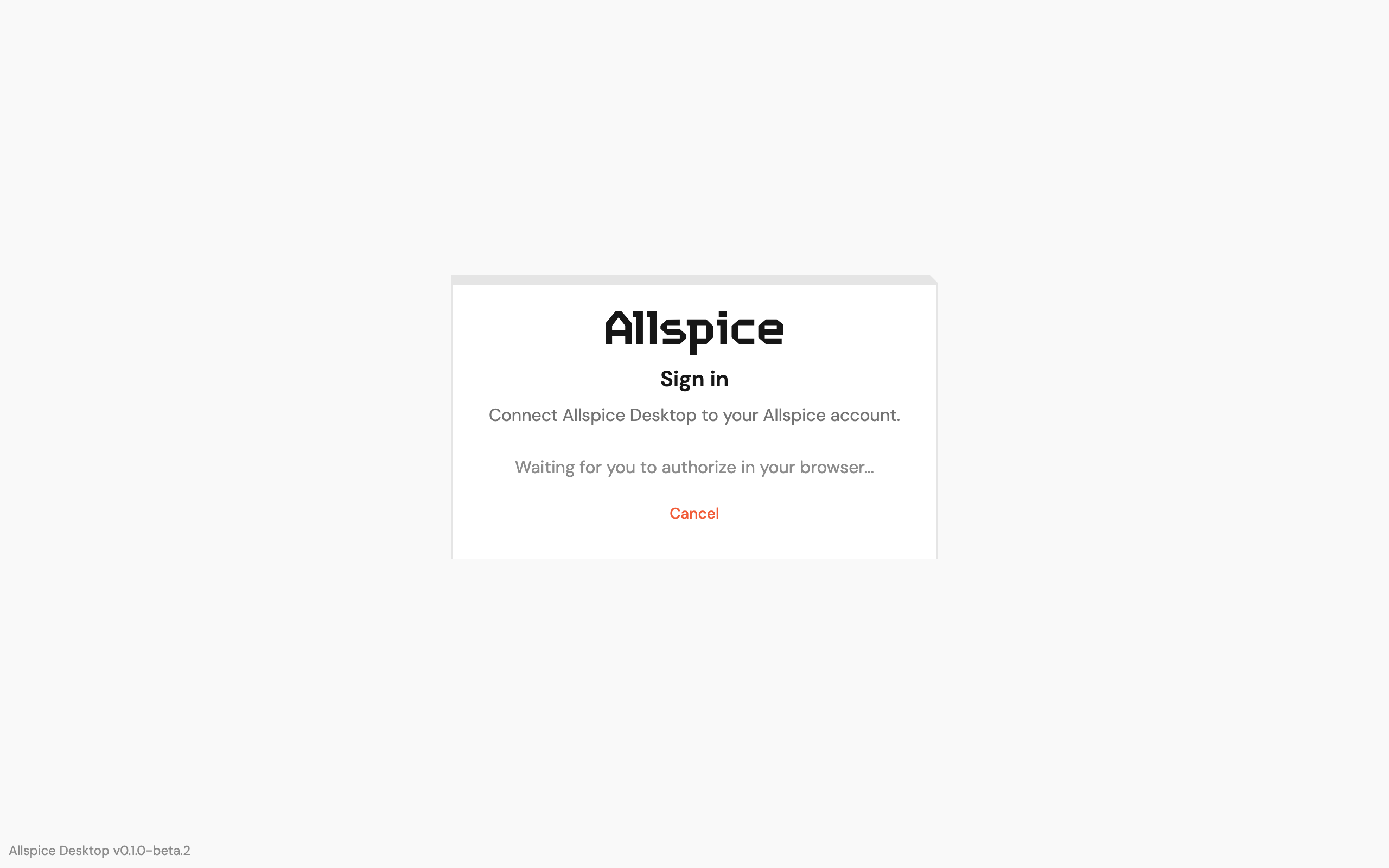
- Select Sign in with Allspice. The app opens your browser.
-
In your browser, sign in to Allspice if it asks you to.
-
Approve the request from Allspice Desktop.

-
Go back to Allspice Desktop. The app opens, signed in.
While the app waits for your browser, it shows Waiting for you to authorize in your browser…. To stop, select Cancel.
The app keeps you signed in when you close it and open it again. It saves your sign-in in Windows' secure password store.
If sign-in fails
The app tells you what went wrong, such as a timeout, a denied request, or a server it can't reach. Select Retry or Sign in with Allspice to try again.
Sign out
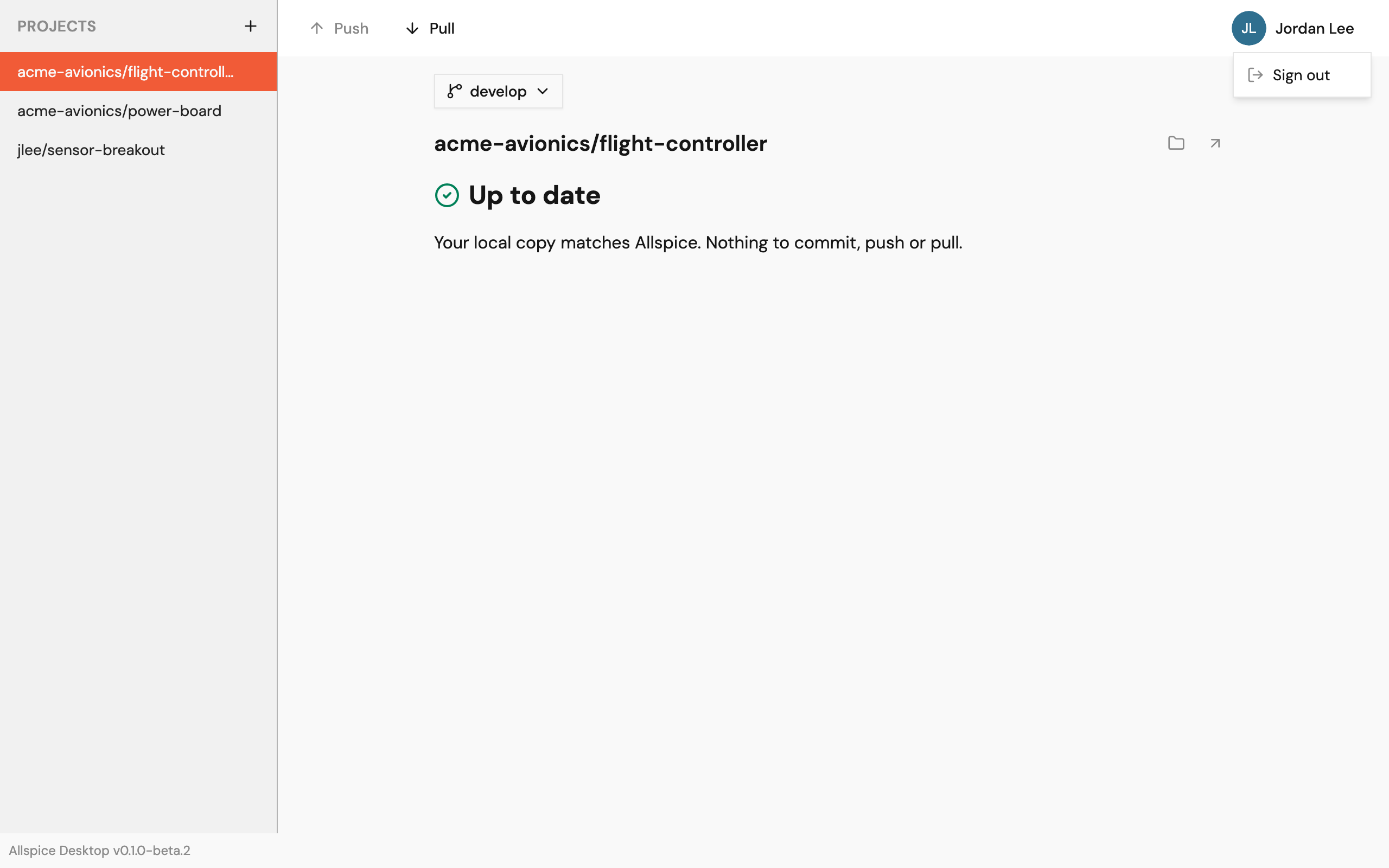
- Select your name at the top right of the app.
- Select Sign out.
Change your server address
- Sign out.
- On the Sign in screen, select Change server address.
- Enter the new address, then select Continue.
The app keeps a separate sign-in for each server.