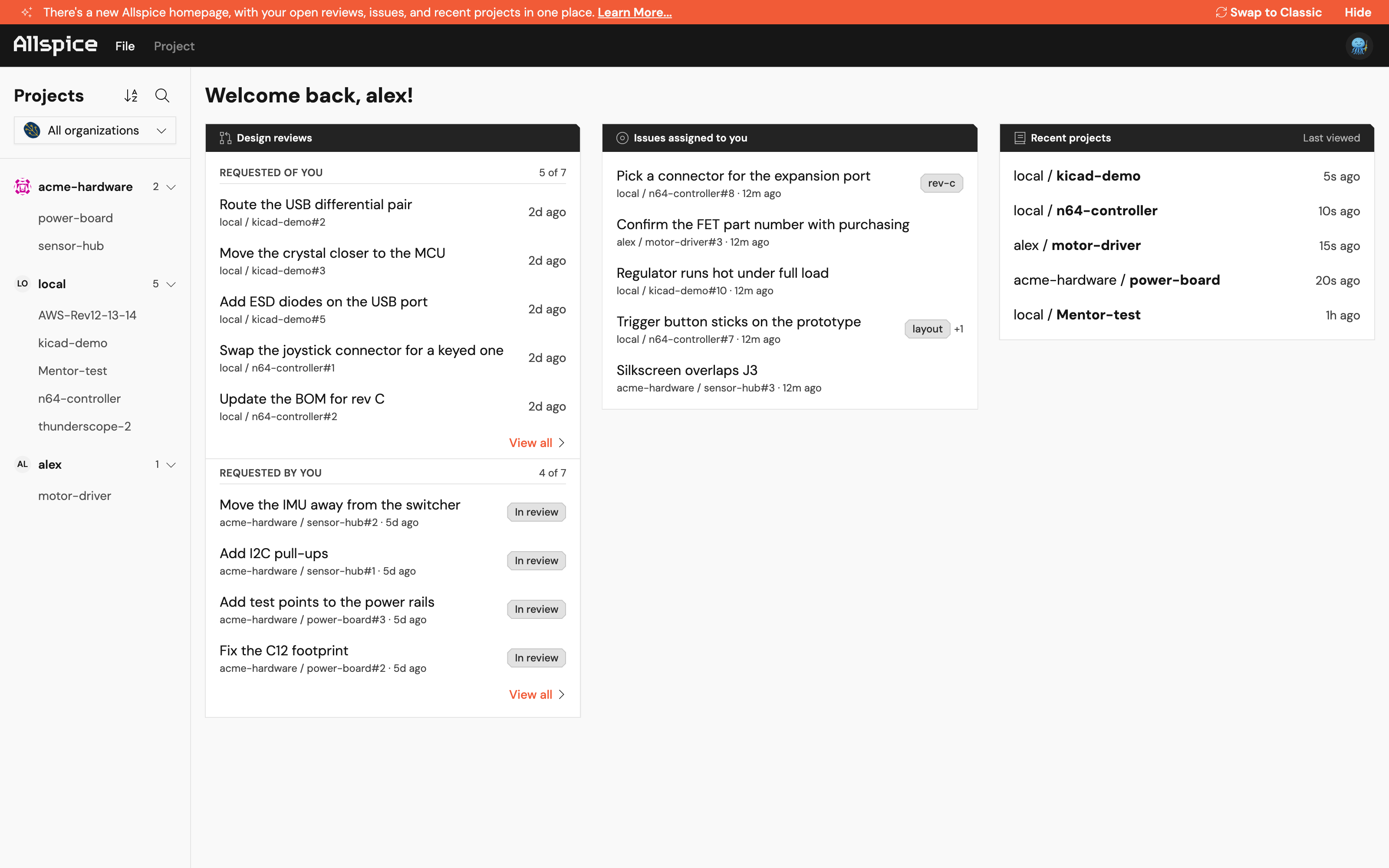
The Home page is the first page you see when you open Allspice. It puts your design reviews, the issues assigned to you, and your recent projects in one place. Your full project list is on the left.
Note: The Home page is part of the new Allspice. You can switch back to Allspice Classic at any time. See Switch between the new Allspice and Classic below.
What is on the Home page
- The banner at the top tells you about the new Home page. It has a Learn More... link to this page and a Swap to Classic button.
- The menu bar has the File menu and your profile picture.
- The Projects list on the left shows every project you can open, grouped by owner.
- Three cards in the main area show your Design reviews, your Issues assigned to you, and your Recent projects.
Walkthrough: start your day on the Home page
1. Check your design reviews
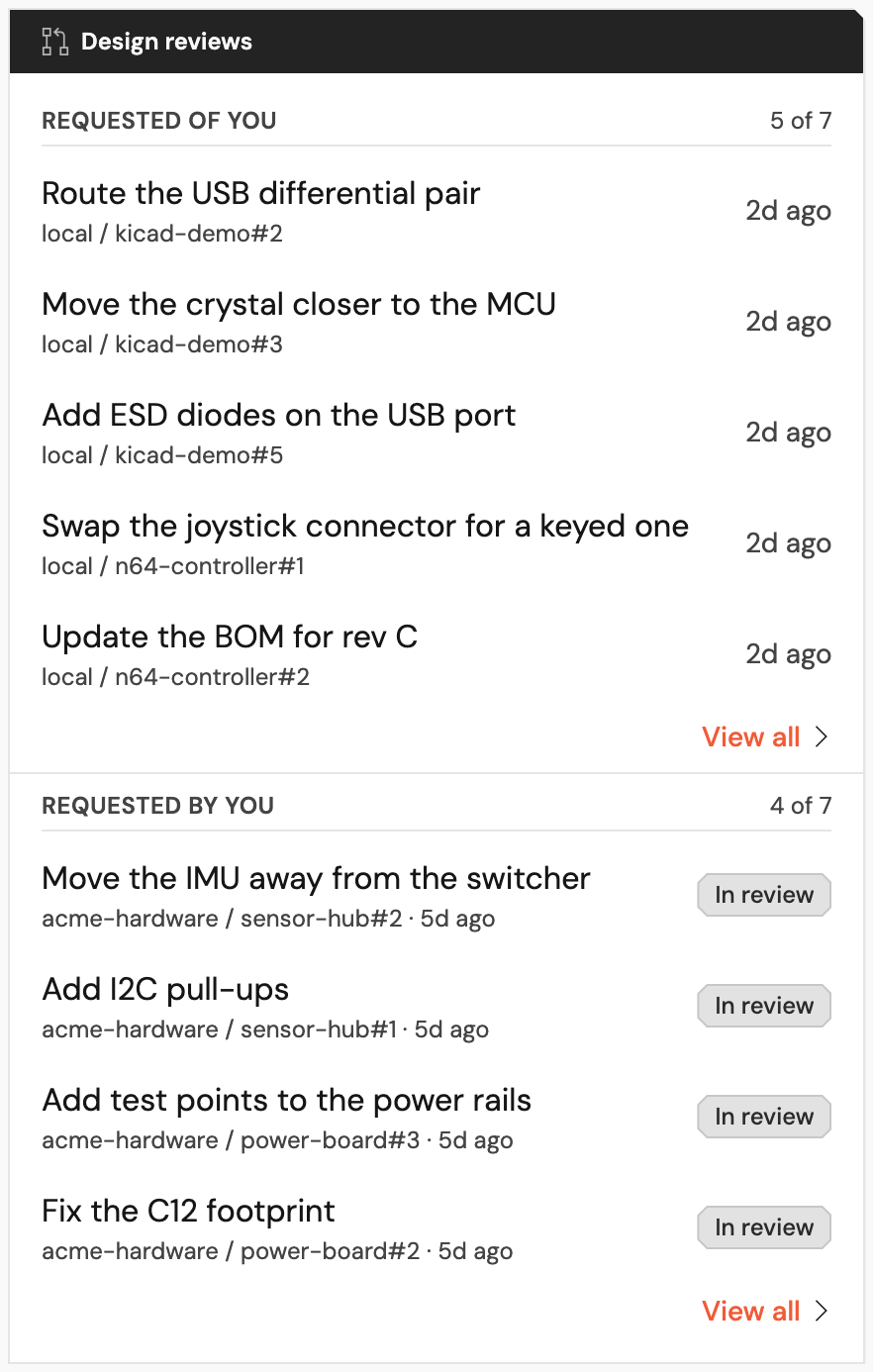
The Design reviews card has two lists:
- Requested of you lists the open design reviews where someone asked you to review.
- Requested by you lists the open design reviews you started. A tag shows where each one stands: In review, Changes requested, or Approved.
Each row shows the review's title, its project and number, and how long ago it changed. When a list has more reviews than it shows, the count at the top shows how many, for example 5 of 7.
- Select a review to open it.
- Select View all to see every review in that list.
Reviews open in Allspice Classic for now.
2. Check the issues assigned to you
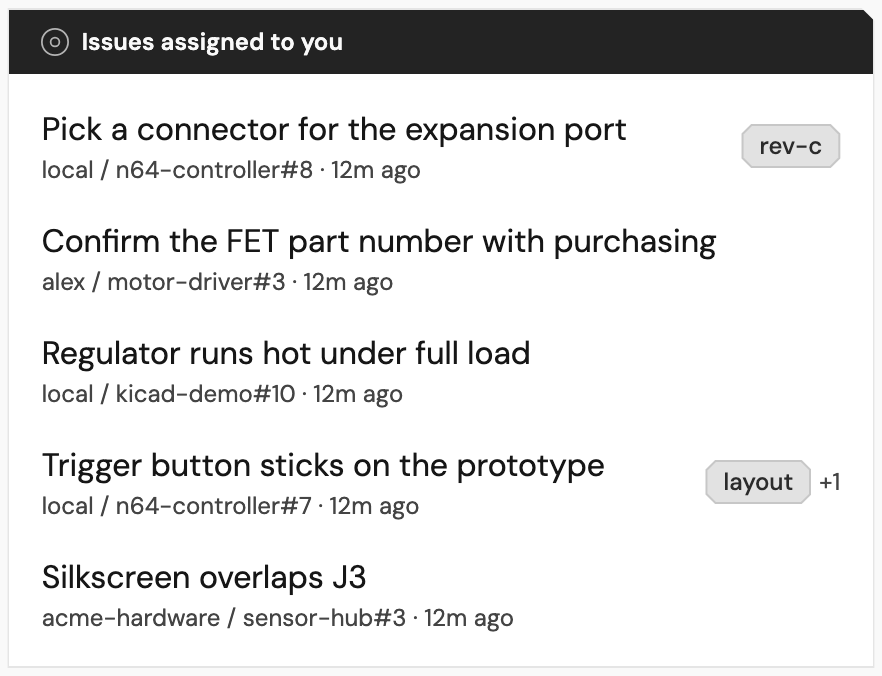
The Issues assigned to you card lists the open issues assigned to you. Each row shows the issue's title, its project and number, and how long ago it changed. The first label shows on the right. A number such as +1 shows how many more labels the issue has. Point to the labels to see all of them.
- Select an issue to open it.
Issues open in Allspice Classic for now.
3. Go back to a recent project
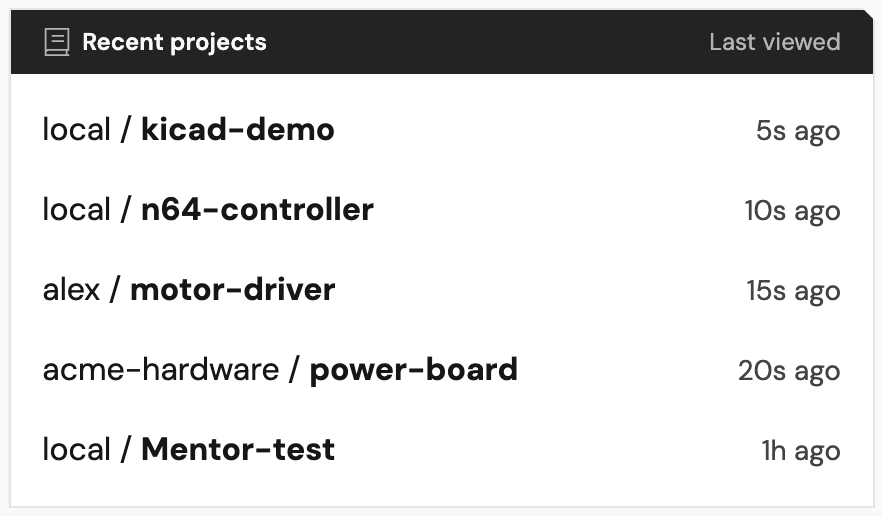
The Recent projects card lists the projects you opened last. The most recent project is at the top. The Last viewed column shows when you last opened each one.
- Select a project to open it on the Design page.
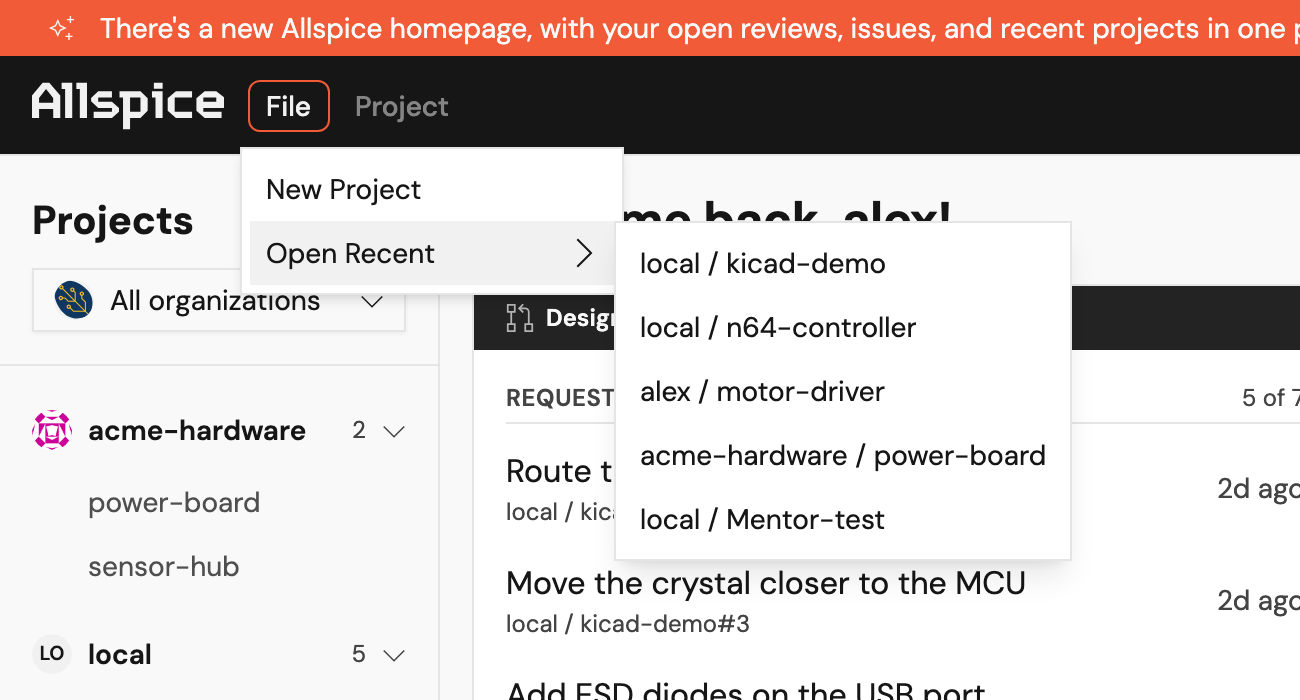
You can also open a recent project from any page:
- Select File in the menu bar.
- Point to Open Recent.
- Select a project.
4. Find any project
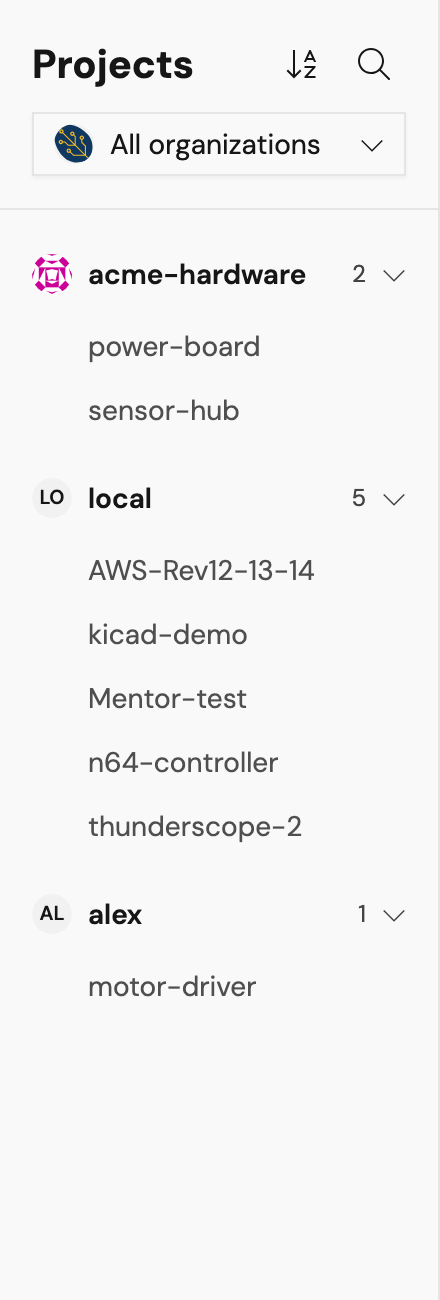
The Projects list on the left shows every project you can open. Projects are grouped by their owner, which is an organization or a person. The number next to each owner shows how many projects it has. Select the arrow next to an owner to collapse or expand its group.
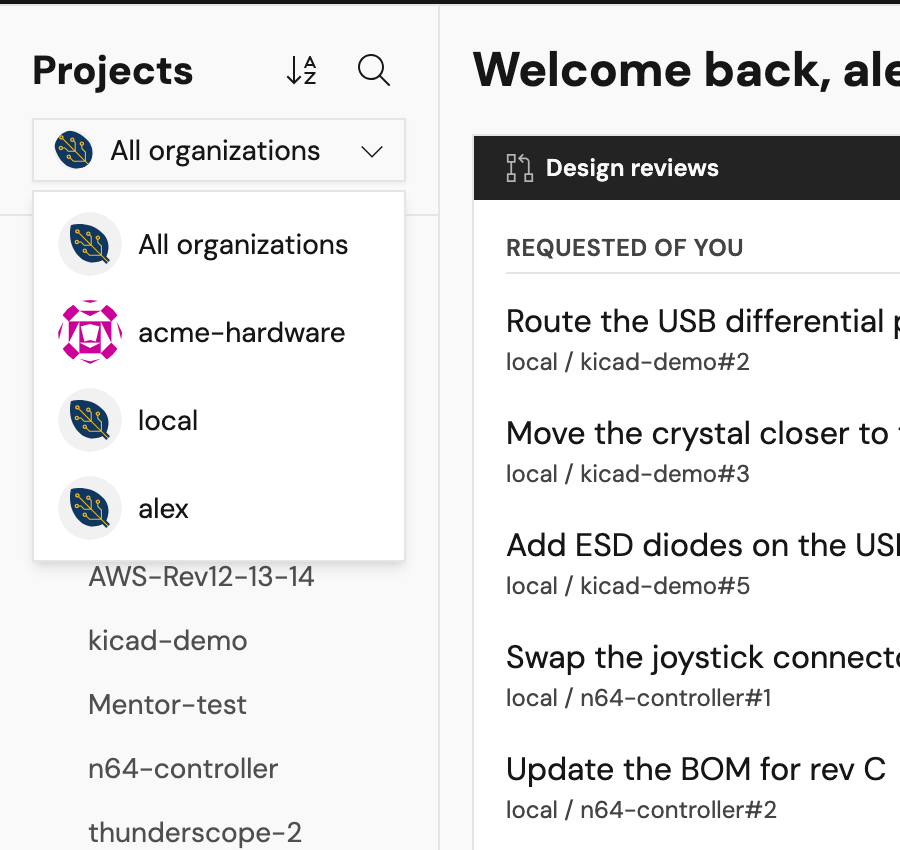
To show only one owner's projects:
- Select the owner menu. It shows All organizations at first.
- Select an organization or a person.
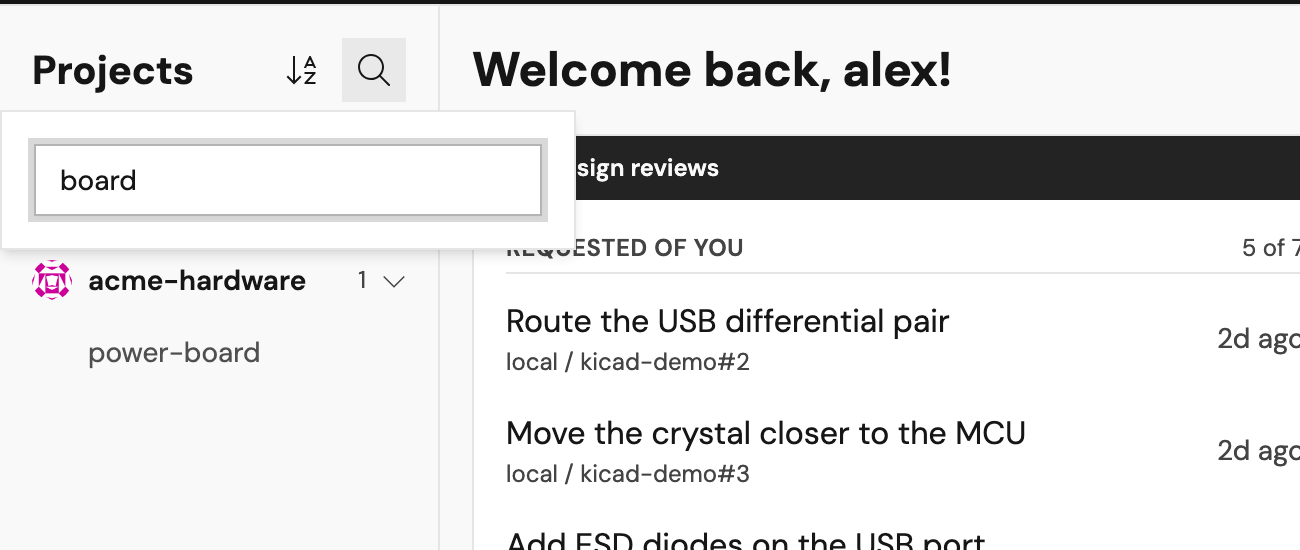
To find a project by name:
- Select the search icon next to Projects.
- Type part of the name.
The list shows only the projects whose name matches. The search icon stays highlighted while a search is on. To see every project again, clear the search box.
To change the order of the list:
- Select the sort icon next to Projects.
The list switches between A to Z and Z to A. Point to the icon to see the current order.
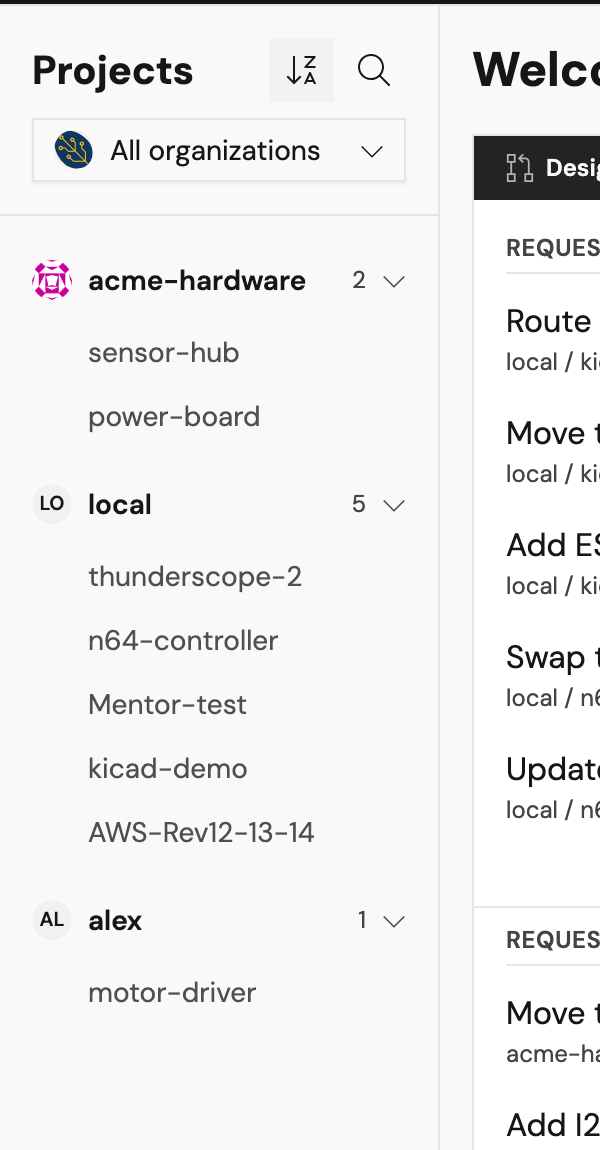
To open a project, select its name. The project opens on the Design page.
5. Start a new project
- Select File in the menu bar.
- Select New Project.
The new project form opens in Allspice Classic.
Switch between the new Allspice and Classic
You can change to Allspice Classic at any time, and back again. Your choice applies only to you.
To switch to Classic from the banner: select Swap to Classic in the orange banner at the top of the page.

To switch to Classic from your profile menu:
- Select your profile picture in the top-right corner.
- Select Switch to Allspice Classic.
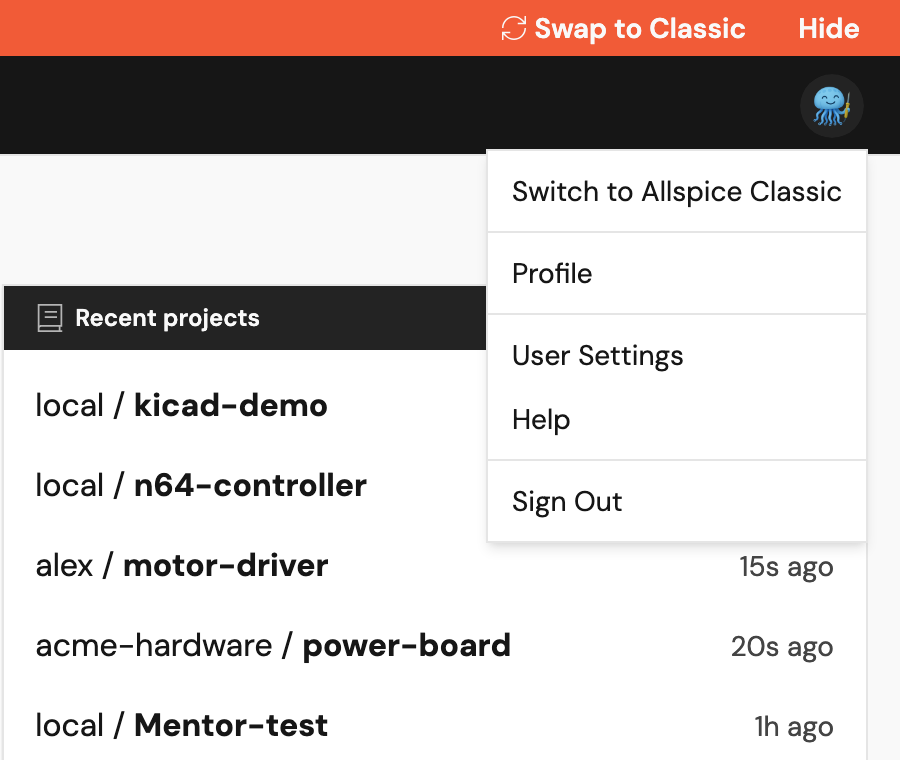
To switch back to the new Allspice from Classic:
- Select your profile picture in the top-right corner.
- Select Try the new Allspice.
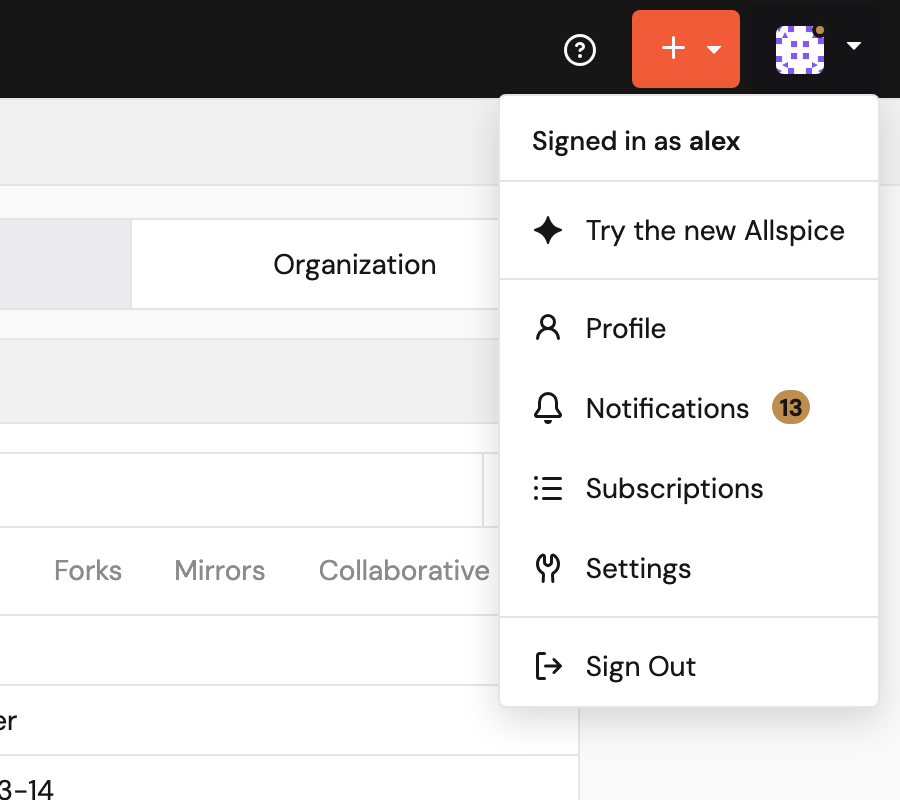
If you select Hide in the banner, the banner stays hidden. The switch is still in your profile menu.