Allspice has a new look, starting with two pages: the Home page and the Design page. The new pages help you find your work faster and inspect a design without going back to your ECAD tool. You can switch back to Allspice Classic at any time, and switch to the new pages again whenever you like.
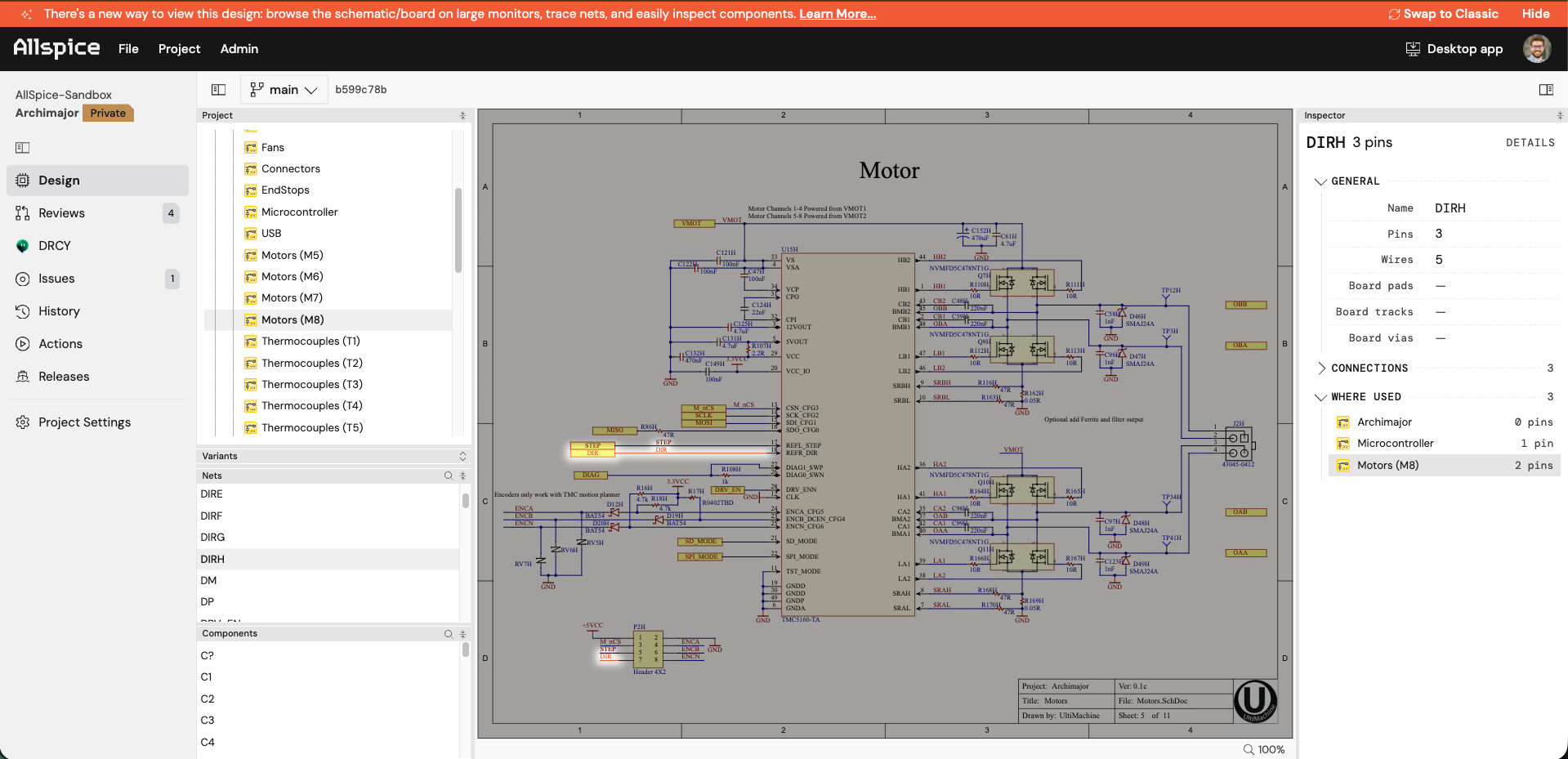
Why we are changing Allspice
We built the refresh around what engineers told us about Allspice:
- Design inspection took too many steps. Tracing a net, moving between sheets, and checking a part's parameters took many clicks. Many engineers kept their ECAD tool open next to Allspice to finish the job.
- Navigation lost your place. Menus scrolled out of view on long pages. Two menus had items with the same names that went to different places.
- It was hard to find your work. Your reviews and projects were spread across several menus. You had to search for the work that needed you.
- Git terms got in the way. Words like "repository" describe how files are stored, not how hardware engineers work.
The goal of the refresh is simple. When you open Allspice, you see the work that needs you. When you open a design, you find the sheet, trace the net, and check the part in Allspice.
What is new
The refresh starts with the two pages where engineers spend the most time.
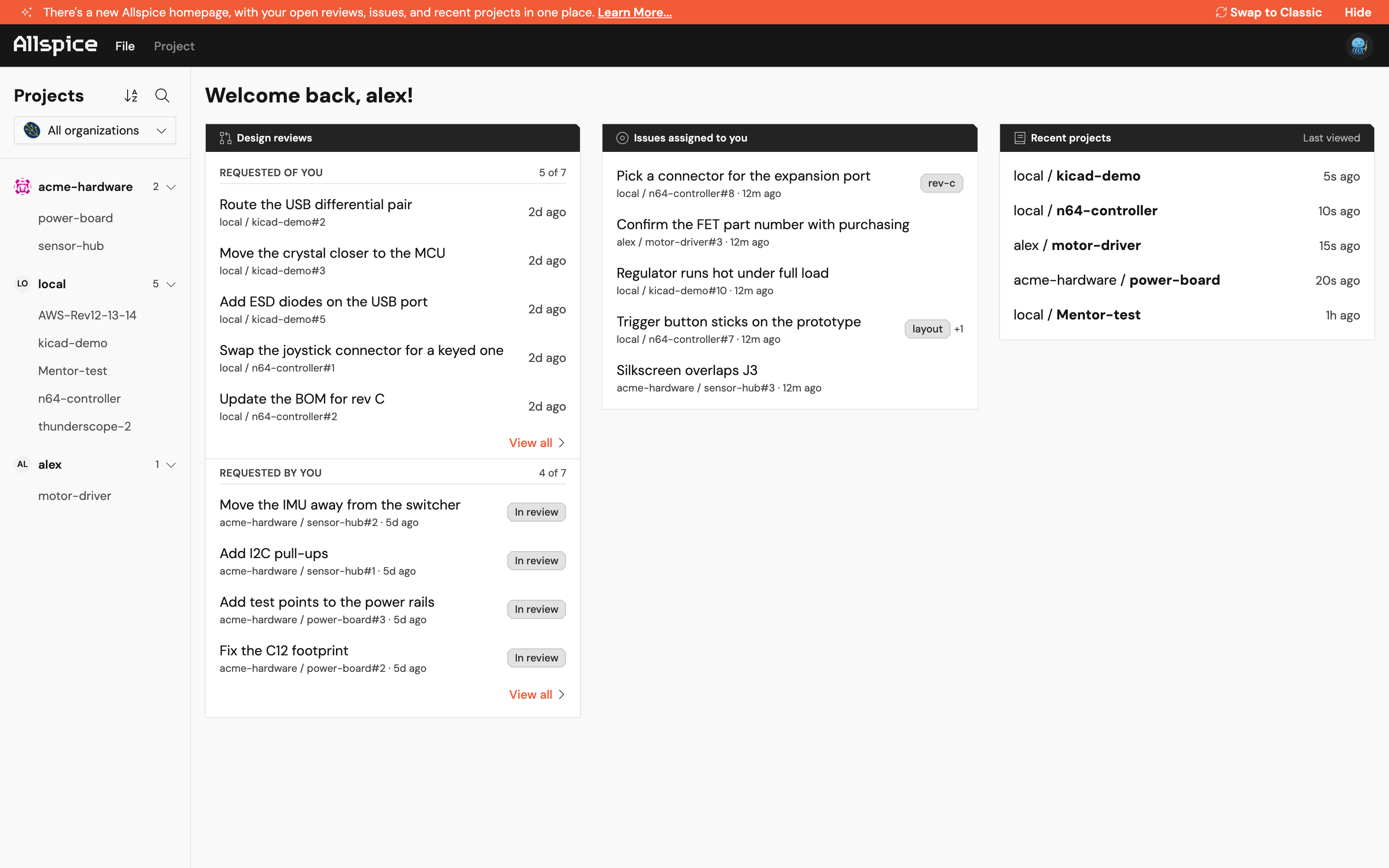
The Home page puts your design reviews, the issues assigned to you, and your recent projects in one place. Your full project list is on the left, grouped by organization. See Home page.
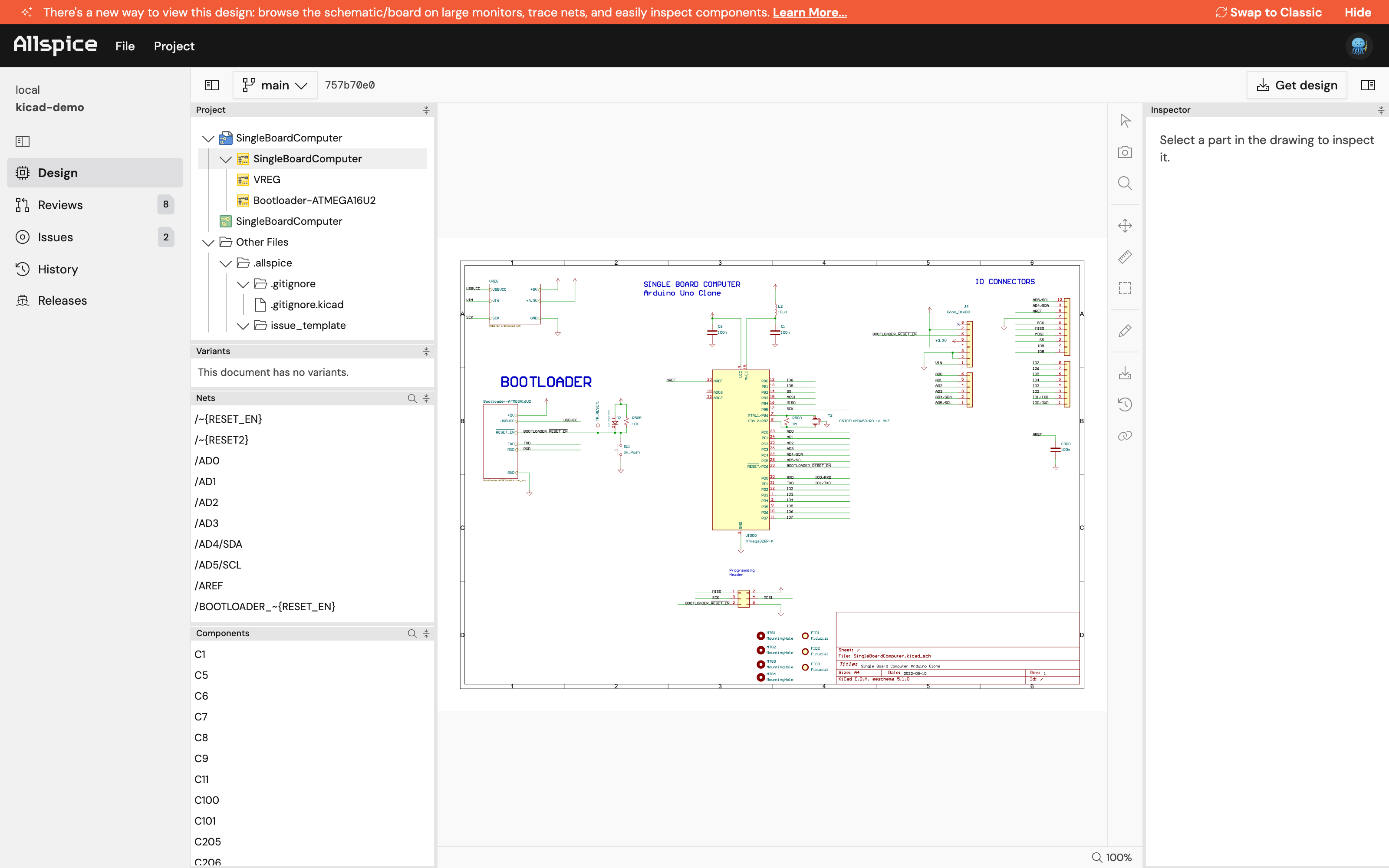
The Design page opens when you select a project. It shows the project's schematics and boards in a large viewer, with search for nets and components and an Inspector for the selected part. See Design page.
Other pages, such as Design Reviews, Issues, and Settings, still open in Allspice Classic for now. We will move more pages to the new look over time.
Switch between the new Allspice and Classic
You choose which version of Allspice you use. Your choice applies only to you, and you can change it at any time. When you switch, Allspice keeps you on the same page where it can.
Switch to Classic from the banner
An orange banner at the top of each new page tells you what is new on that page. Select Learn More... in the banner to open the help page for that page.
- Select Swap to Classic in the banner.

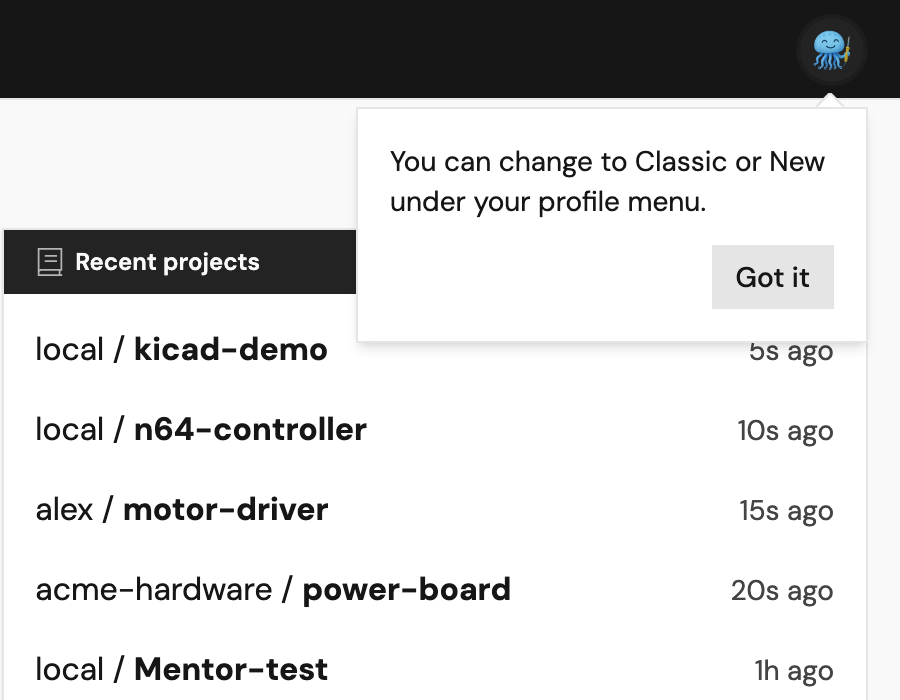
To hide the banner, select Hide. A message then tells you where to find the switch. Select Got it to close the message. The banner stays hidden after that.
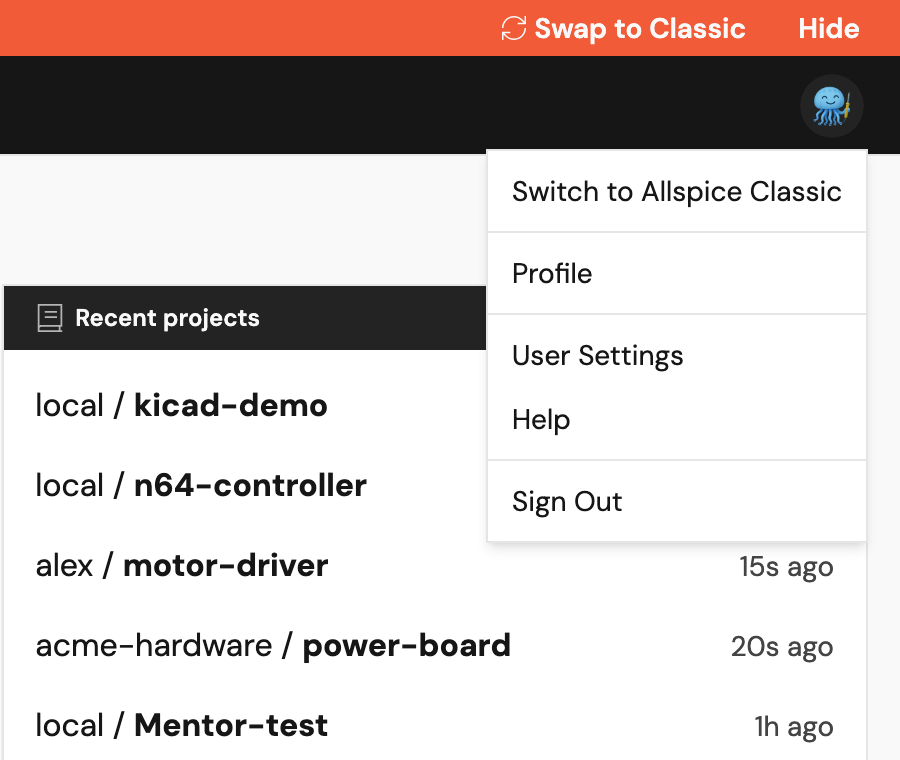
Switch to Classic from your profile menu
- Select your profile picture in the top-right corner.
- Select Switch to Allspice Classic.
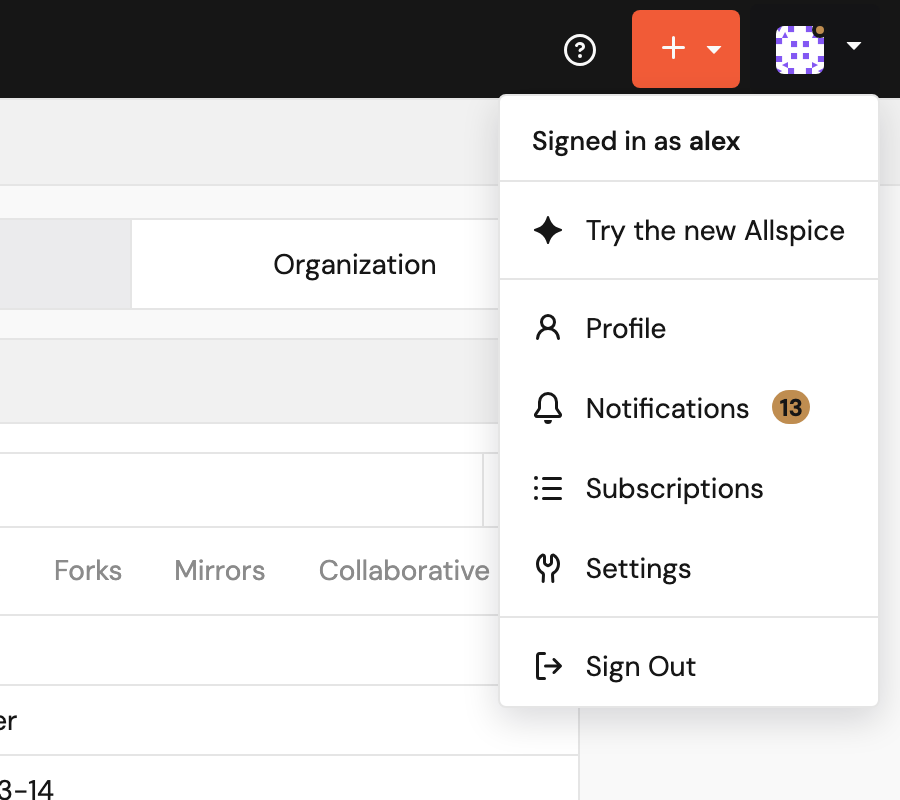
Switch back to the new Allspice from Classic
- In Allspice Classic, select your profile picture in the top-right corner.
- Select Try the new Allspice.
Tip: If a design does not show in the new Design page, switch to Classic to keep working. Then tell us about it at support@allspice.io, so we can fix it.
What to expect during the beta
- The new pages are rolling out to cloud customers first. Self-hosted customers will get them in a later release.
- Some features are not ready yet.
- Some links on the new pages open a page in Allspice Classic. This is expected while we move each page over.
Send us feedback
We want to hear what works for you and what does not. Email support@allspice.io, or tell your Allspice contact.