How to Configure Teams in AllSpice
Teams allow you to control role-based permissions inside your AllSpice organization. You can define who can read or write files, push or pull from repositories, create design reviews, manage releases, and more.
Team configuration also determines which users count as billable designers.

If you only need to adjust paid designer teams, see:
How to switch teams between designer and collaborator
How to View Your Teams
-
Navigate to your Organization main page
/v1/docs/how-to-view-your-organization -
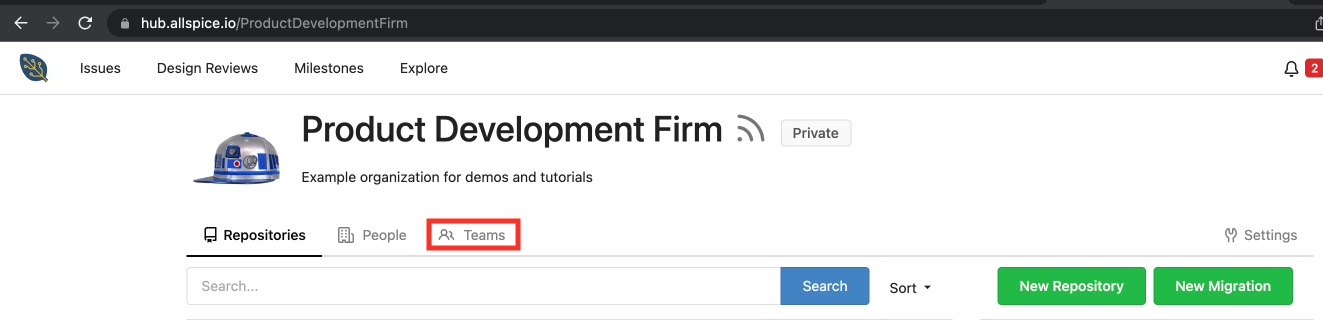
Click the Teams tab.
Recommended Team Structure
Most organizations benefit from at least two teams:
Designers
- Full read and write access to repositories
- Can push changes and modify files
- Count as billable designers (if File permission is set to Write)
Reviewers
- Read access to files
- Write access to Issues and Design Reviews
- Do not modify source files
- Do not count as billable designers
This structure:
- Protects production designs
- Keeps billing intentional
- Separates authorship from review
Create a new Team for Designers
Below is an interactive walkthrough demonstrating how to create a new Team and configure repository permissions for your Designers who need write access to add and update files.
Step-by-step guide to create a new Team for Designers who need write permission
Create new Team for Reviewers
Below is an interactive walkthrough demonstrating how to create a new Team and configure repository permissions for Reviewers
Step-by-step guide to create a new team for Reviewers
-
Click the "+ New Team" button to begin creating a new team in your organization.
.png)
-
Enter a descriptive team name to help identify the group’s role or purpose.
.png)
-
Select "Specific repositories" to limit this team's access to only chosen repositories, enhancing access control.
.png)
-
Enable external wiki access if your team needs to reference documentation outside the platform.
.png)
-
Allow access to external issues for integrating with an outside issue tracker system.
.png)
-
Finalize team creation by clicking "Create Team" after configuring all access and permissions.
.png)
-
Switch to the "repositories" tab to review or assign repositories to this team.
.png)
-
Search for an existing repository to manage or add additional access for your team.
.png)
-
Select the desired repository from the dropdown to prepare it for team access.
.png)
-
Add the selected repository to the team's list to grant access.
.png)
-
Type in the repository name for further additions to the team's access list.
.png)
-
Choose another repository from the suggestions to add it to this team's access.
.png)
-
Assign the repository to the team by clicking the "Add" button to provide the appropriate access.
.png)
-
Congratulations! You've created a Team for Reviewers. They can view Design Reviews and make comments like requesting changes.
Structuring Teams for Business Unit Isolation
If your organization includes multiple business units that need separate access to different sets of repositories — without visibility into each other's work, the recommended approach is to create a dedicated team for each business unit and assign only the relevant repositories to that team. Users outside a team cannot see or access repositories that team controls.
For example, a company working across several verticals might create:
| Team | Members | Repositories |
|---|---|---|
| Automotive-Designers | Automotive engineers | Automotive project repos only |
| Automotive-Reviewers | Automotive reviewers | Automotive project repos only |
| Submersibles-Designers | Submersibles engineers | Submersibles project repos only |
| Submersibles-Reviewers | Submersibles reviewers | Submersibles project repos only |
| Aerospace-Designers | Aerospace engineers | Aerospace project repos only |
| Aerospace-Reviewers | Aerospace reviewers | Aerospace project repos only |
| Manufacturers-Reviewers | Contract manufacturers | Read-only access to specific production repos |
Members can belong to multiple teams when cross-unit access is needed — for example, a senior engineer who works across both Automotive and Aerospace can simply be added to both teams.
To set this up:
- Create a new team (e.g.,
Automotive-Designers) - Set repository access to Specific repositories and add only that business unit's repos
- Add the appropriate members
- Designate one or more team owners who can manage membership within that team
- Repeat for each business unit and role combination
This keeps everything within a single organization, simplifying billing, administration, and SSO configuration as you scale.
Understanding Team Settings
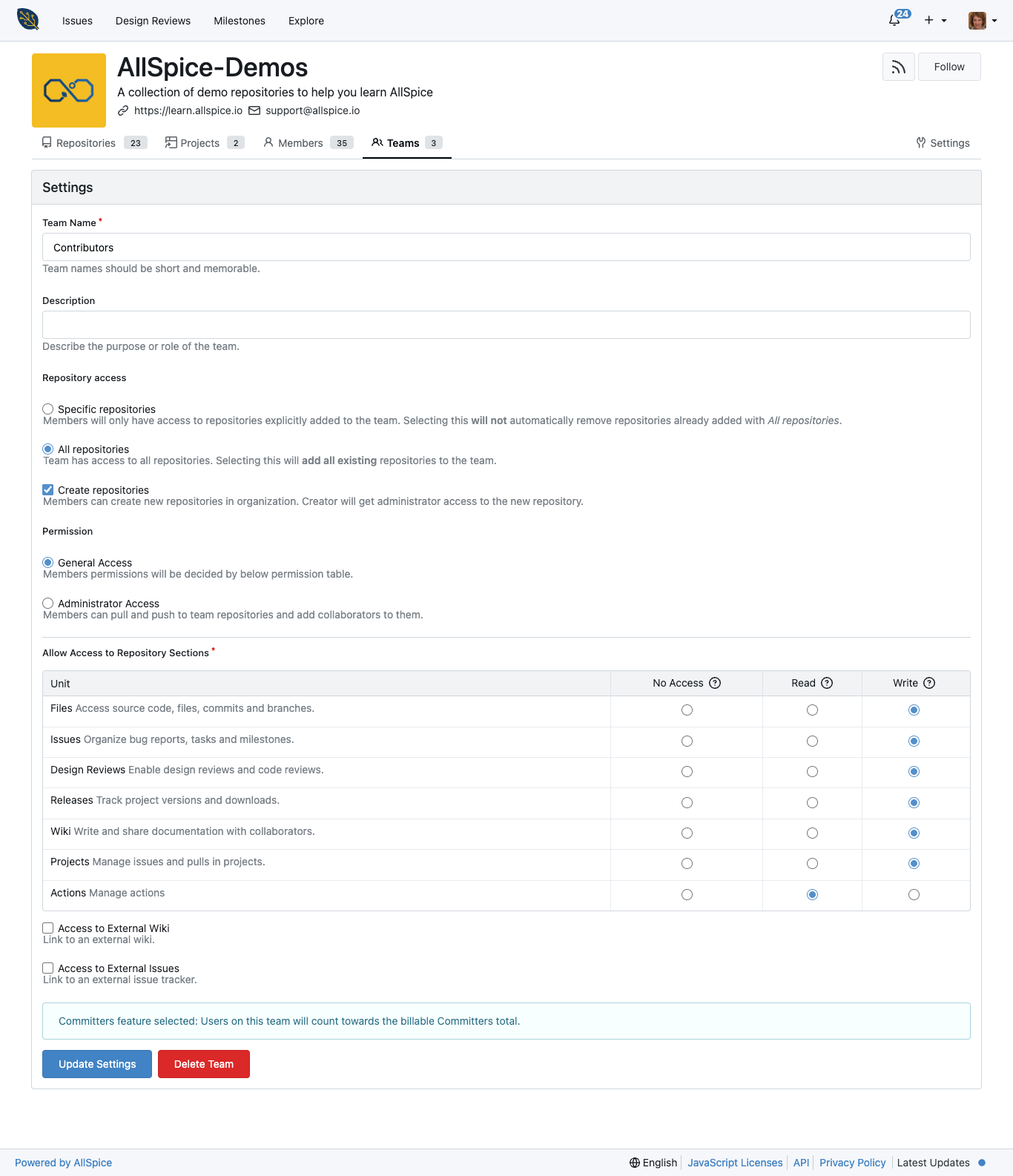
Whether creating a new team or editing an existing one, the configuration form is the same.
Team Name
Choose a name aligned with job function. Clear naming helps manage security and billing.
Examples:
- Designers
- Collaborators
- EngineeringReview
- EngineeringDesign
- Designers
- Contractors
- Technicians
- Purchasing
- Planning
- ContractManufacturers
Description
Use the description to clarify the purpose of the team and what level of access it should have.
Repository Access
Specific repositories (recommended for restricted access)
Only selected repositories are accessible. New repos are not automatically added.
All repositories
Team members automatically gain access to new repositories. Not recommended for external users.
Create repositories
Allows team members to create new repositories.
This does not affect billable designer count.
Permission Level
Administrator Access
- Full admin access to repositories
- All members count as billable designers
General Access
Permissions are controlled by section below.
Section Permissions
Files
- Read: View all files
- Write: Push/pull, modify files, commit changes
⚠️ Billing Note:
Only File Write permission affects billable designer count.
Issues
- Read: View issues and milestones
- Write: Create, edit, comment, attach files
Design Reviews
- Read: View pull requests and changed files
- Write: Create, update, comment, attach files
Releases
- Read: View releases
- Write: Create releases and attach files
Wiki
- Read: View wiki
- Write: Edit and create wiki pages
Projects
- Read: View Organization Project boards
- Write: Create and manage Organization Project boards
Packages
Currently disabled.
External Integrations
- Enable external wiki if using an outside documentation system
- Enable external issues if linking to an external issue tracker
Frequently Asked Questions
Does Write access always make someone billable?
No. Only Write access to Files or Administrator Access counts toward billable designer status.
Should external contractors have All repositories enabled?
No. Use Specific repositories to limit exposure.
What's the difference between Administrator and General access?
Administrator grants full control across repositories and is a billable team. General access allows section-level permission control, including read and comment access. Most teams should use General access.
Can I edit a team after creating it?
Yes. Editing a team uses the same configuration form.
How do I prevent one business unit from seeing another's repositories?
Create a separate team for each business unit and set its repository access to Specific repositories. Only add that unit's repos to the team. Members outside the team have no visibility into those repositories.
For example: an Aerospace team with Specific repositories set to only Aerospace repos cannot see any Automotive, Submersibles, or manufacturer repos — and vice versa. Users who genuinely need cross-unit access can simply be added to multiple teams.
Can team membership be managed automatically through SSO?
Yes. Team membership can be mapped to your SSO provider, so users are added to the correct teams automatically based on their identity attributes when they log in. See Preparing for Enterprise SSO (OIDC) with AllSpice for details.